How It Works
- 1
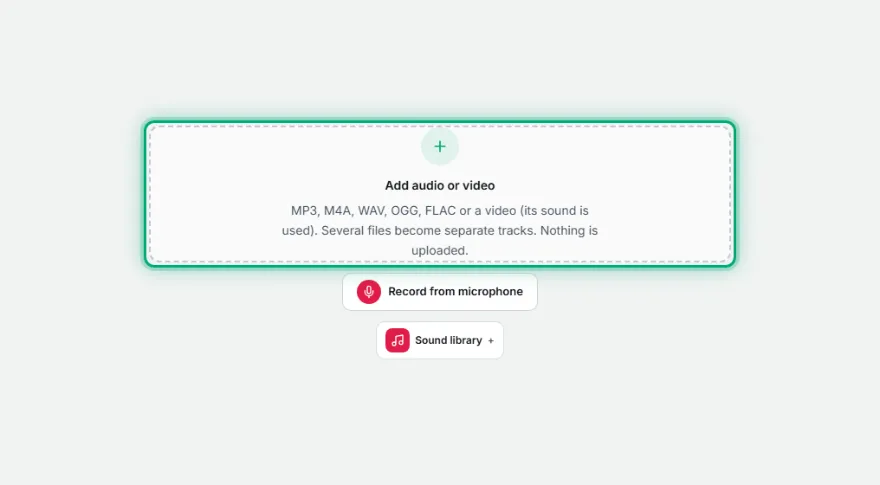
Add audio
Add one or more audio or video files, or record from your microphone. Each file becomes a track, and the + Add track button is always on screen.
- 2
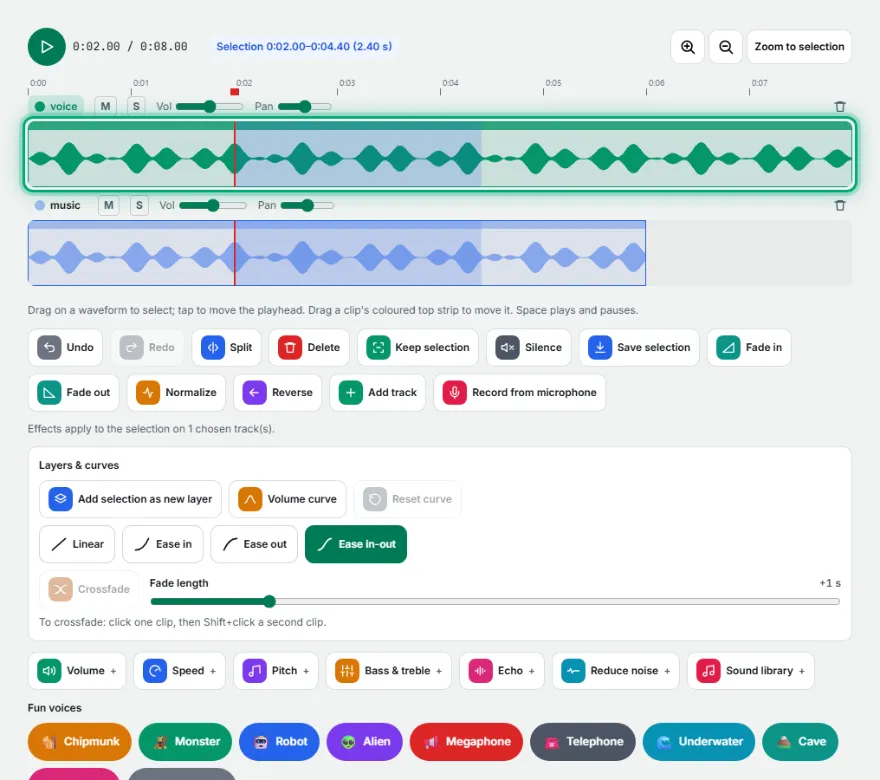
Select, trim and move
Drag on the waveform to select a part, then delete it, keep only it, split it or silence it. Select a clip to drag its edges to trim it, move it by its top strip or remove it with the x button.
- 3
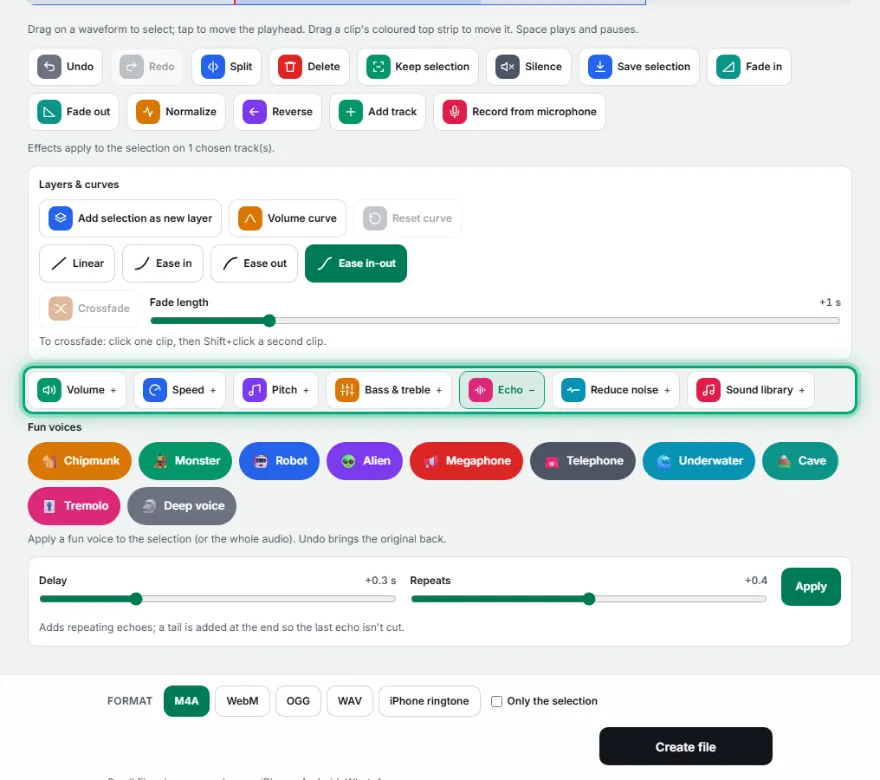
Add fun voices and library sounds
Apply a fun voice such as Chipmunk or Robot to the selection as a new layer or in place, or open the sound library and add one of 124 sound effects or 21 music loops at the playhead.
- 4
Add effects and shape the volume
Fade in and out, normalize, change volume, speed, pitch, bass and treble, add echo or reduce noise. Draw volume curves or crossfade two clips for smooth transitions.
- 5
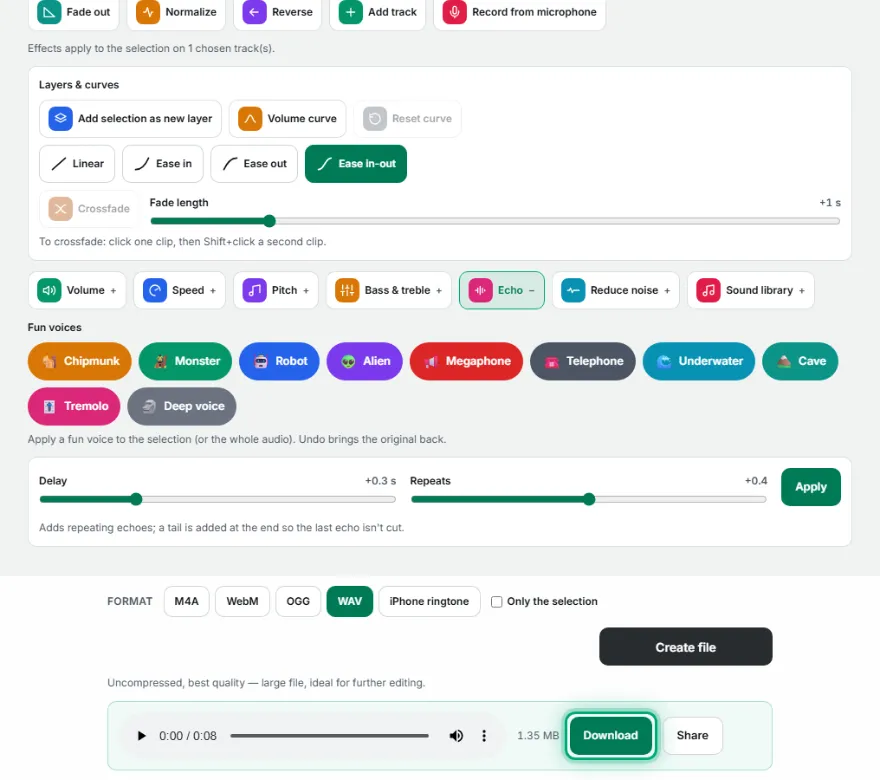
Export
Choose M4A, WAV, WebM, OGG or an iPhone ringtone and create the file, or save just the selection. Download or share it.
Features
- ✓Multi-track timeline: mix voice, music and effects in layers
- ✓Cut, delete, keep selection, split and silence
- ✓Trim clips by dragging their edges; move or delete with handles
- ✓10 fun voices, as a new layer or in place
- ✓Sound library: 124 sound effects in 10 groups and 21 music loops
- ✓Effect lanes: effects stack under the music and can be dragged between lanes
- ✓Volume curves (ease in, ease out) and crossfades between clips
- ✓Fades, speed with or without keeping the voice, pitch, bass and treble, echo, noise reduction
- ✓Microphone recording, undo and redo, draggable playhead
- ✓Save the selection as its own file
- ✓M4A, WAV, WebM, OGG and iPhone ringtone export
- ✓Your file contents never leave your browser
Frequently Asked Questions
Is my audio uploaded anywhere?
The page loads ads and visit measurement; AI tools download their models once; your file contents are not uploaded. For sensitive files use the isolated mode (/isolated).
Can I cut a song and make a ringtone?
Yes. Select the part you want, choose “iPhone ringtone” (up to 40 seconds) or M4A for Android, and create the file.
How do I put music under my voice recording?
Add the voice and the music as separate tracks, lower the music track's volume and move the clips by their top strip. Export mixes them into one file.
Can I speed up audio without the chipmunk voice?
Yes. In Speed choose “Keep the voice” — only the tempo changes. “Like a tape” changes the pitch too.
How do the fun voices and layers work?
Select a part (or pick a track to use its whole clip), then press Chipmunk, Deep voice, Monster, Robot, Alien, Megaphone, Telephone, Underwater, Cave or Tremolo. Under “Apply to” choose New layer, which adds the changed sound as its own layer and leaves the original untouched, or Original, which changes it in place. Undo brings the original back either way.
Where do the library sounds come from, and can I use them in my projects?
The library has 124 sound effects in 10 groups (fun, game, interface, transitions, nature, foley, drums, percussion, alarms and instruments) and 21 music loops. Each one is generated on your device when you play or add it, so there is nothing to download and no one else's recording is involved. They are free to use in your projects, including videos and podcasts you publish.
What are effect lanes?
Sound effects sit in thin lanes under the music. When you add one it goes into a free lane automatically, so effects stack instead of covering each other. You can drag an effect clip up or down between lanes, and mute or remove a whole lane.
How do I trim a clip?
Select the clip and drag its left or right edge, as in a video editor. Dragging the end can also stretch the clip back out. Use the strip on top of the clip to move it and the x button to delete it.
Can I fade in, fade out or crossfade?
Yes. Use the quick fade effects, or switch on Volume curve to click a point onto a clip's line and drag it into an ease in, ease out or custom shape. To crossfade, click one clip, then Shift+click a second clip and set the fade length.
Can I export MP3?
MP3 appears when your browser can encode it. M4A is just as widely supported (iPhone, Android, WhatsApp) and usually smaller at the same quality. WAV, WebM, OGG and an iPhone ringtone are also available.
Can I edit the sound of a video?
Yes. Add the video file — its sound becomes a track you can edit and export as audio.
Can I use it on my phone?
Yes. Drag on a waveform to select, tap to move the playhead, tap a track to edit only that track and use the zoom buttons for precision. Long projects are easier on a bigger screen.
Are there keyboard shortcuts?
Space plays and pauses. Delete or Backspace removes the selected point, selection or clip, and Esc leaves volume curve mode. You can also drag the red handle on the ruler to move the playhead.