Remove Blank Pages
Blank pages are marked automatically — review them, then remove.
How It Works
- 1
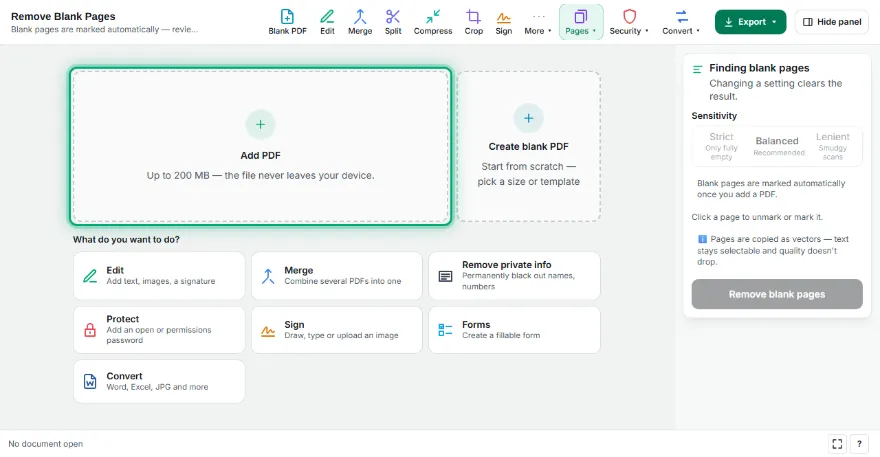
Add your PDF
Choose a scanned PDF or any PDF with empty pages. Every page is checked automatically.
- 2
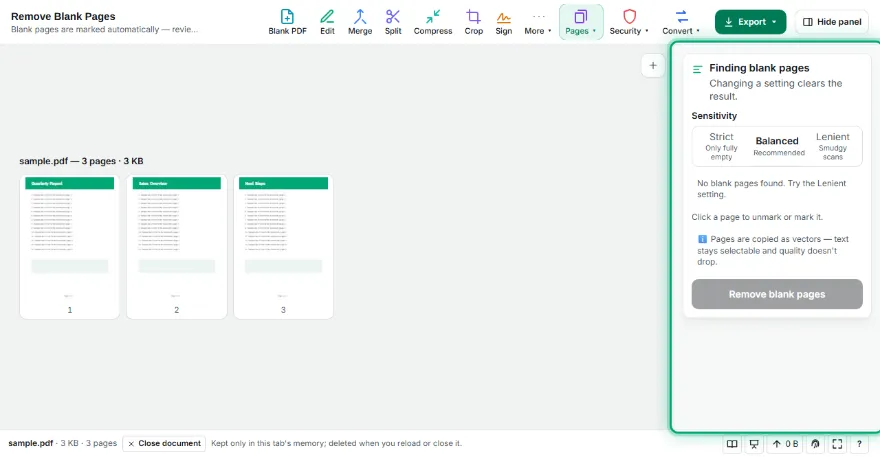
Review the marked pages
Blank pages are marked. Change the sensitivity, or click a page to unmark or mark it.
- 3
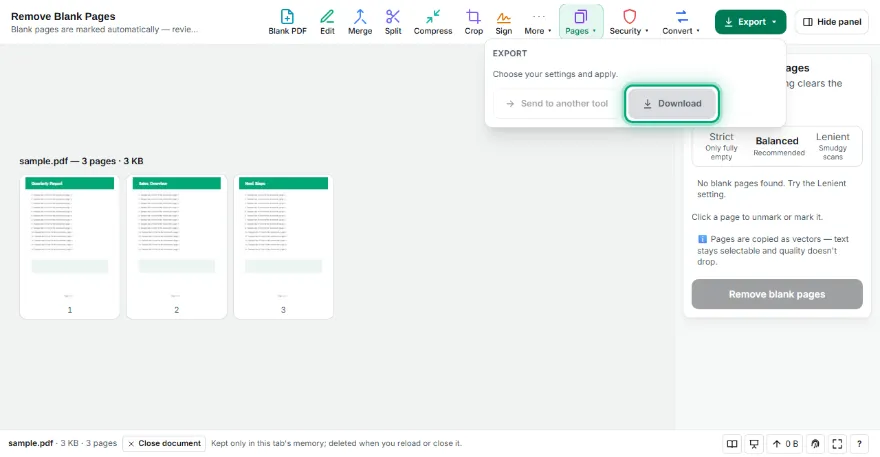
Remove and download
Press “Remove blank pages” and download the cleaned PDF.
Features
- ✓Finds blank pages automatically
- ✓Three sensitivity levels (strict, balanced, lenient)
- ✓Review and fix before anything is removed
- ✓Scanner edge shadows are ignored
- ✓The file never leaves your device
Frequently Asked Questions
How are blank pages detected?
Each page is drawn as a small image and the share of dark pixels is measured. If it's below the limit you chose, the page counts as blank.
What about almost-empty pages, like ones with only a page number?
On Balanced they usually count as blank. Click a page to keep it, or choose Strict.
Are pages removed without asking?
No. You see the marked pages first; they're removed only when you confirm.
Does it lower the quality of the other pages?
No. The remaining pages are copied without being redrawn.