Compression Settings
Controls are visible even before you add an image
Where will you use it?
One tap sets format and target size. Values are practical suggestions; each platform's own limits may differ.
Mode
Compress at a fixed quality level you choose.
Format
How It Works
- 1
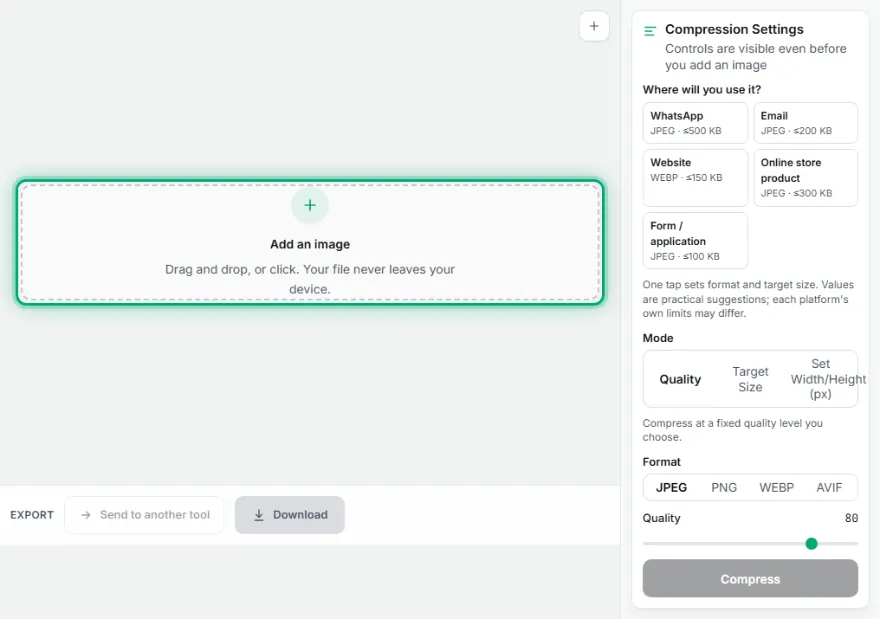
Upload your image
Drag and drop your image, or pick it from the file browser — add up to 5 at once. It never leaves your device.
- 2
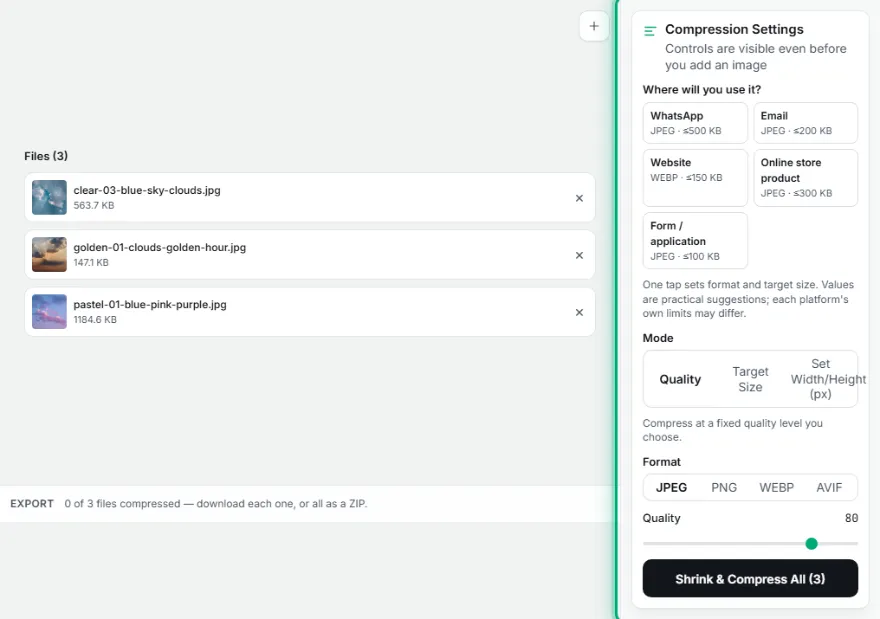
Choose Quality, Target Size, or exact dimensions
Quality mode uses a slider (1-100). Target Size mode searches for the highest quality that still fits your KB limit. Dimensions mode resizes to an exact pixel size.
- 3

Pick a format
JPEG, PNG, WebP, or AVIF — PNG is lossless, so the quality slider doesn't apply to it.
- 4
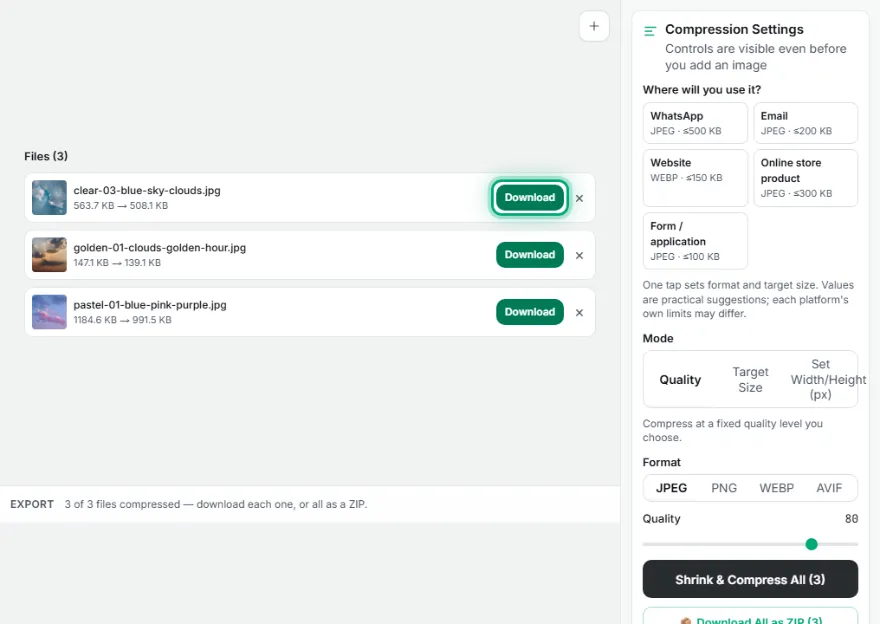
Download
Export the compressed file — the result's real dimensions and file size are shown before you download.
Features
- ✓Three real modes: pick a quality level, type an exact target file size in KB, or set an exact pixel size (with letterboxing)
- ✓Batch processing — up to 5 images at once, each downloadable on its own or all together as a ZIP
- ✓JPEG, PNG, WebP, and AVIF output
- ✓Before/after slider to compare the original and compressed result
- ✓Shows the real output dimensions and file size before you download
- ✓Runs entirely in your browser — no image is ever uploaded to a server
Frequently Asked Questions
What's the difference between Quality and Target Size mode?
Quality mode compresses at a fixed quality level you set (1-100). Target Size mode does the opposite — you type a KB limit, and it searches for the highest quality (and, if needed, a smaller resolution) that fits under it.
Does the downloaded image have a watermark?
Yes — free downloads include a small "Created with Pixebag" signature in the corner. It doesn't affect the image quality or your target file size.
Is my image uploaded anywhere?
No — compression runs entirely in your browser. Nothing is sent to a server.
Which format should I pick?
WebP or AVIF usually give the smallest files at the same visual quality. JPEG is the safest choice for compatibility. PNG is lossless but produces larger files — use it only when you need pixel-perfect output.
Can I compress several files at once?
Yes — add up to 5 images at once, compress them together, and download each one individually or all together as a ZIP.