Bookmarks
Edit bookmarks and page labels — nothing is uploaded
How It Works
- 1
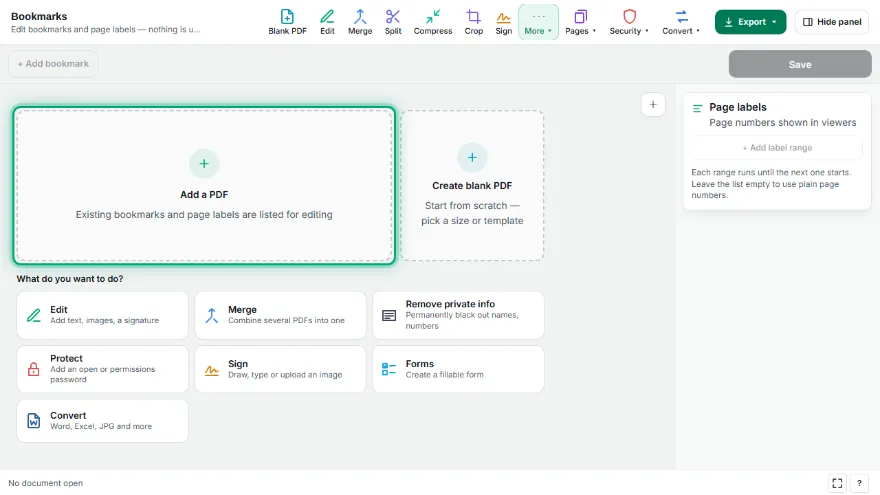
Add your PDF
Existing bookmarks and page labels are read and listed.
- 2
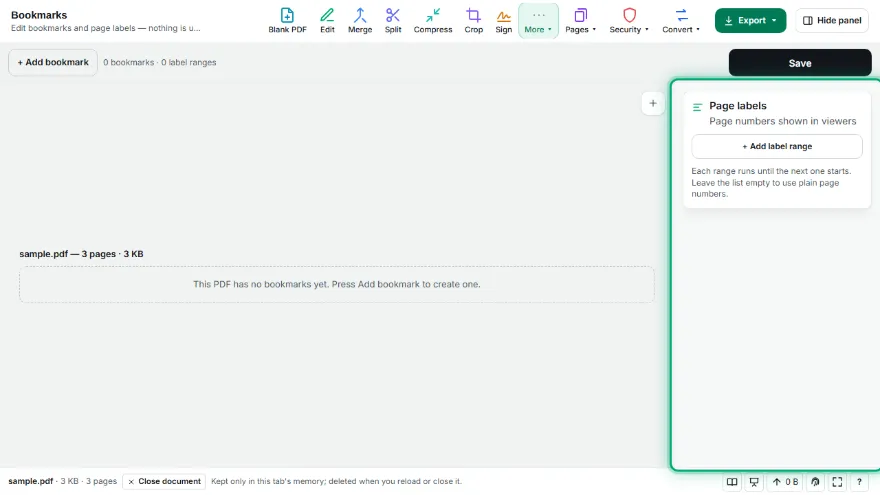
Edit the bookmarks
Rename, set the target page, move up or down, indent to nest under the previous bookmark, or delete.
- 3

Set page labels
Add a range per section: start page, style (1, i, I, a, A), prefix and first number. The preview shows the result.
- 4
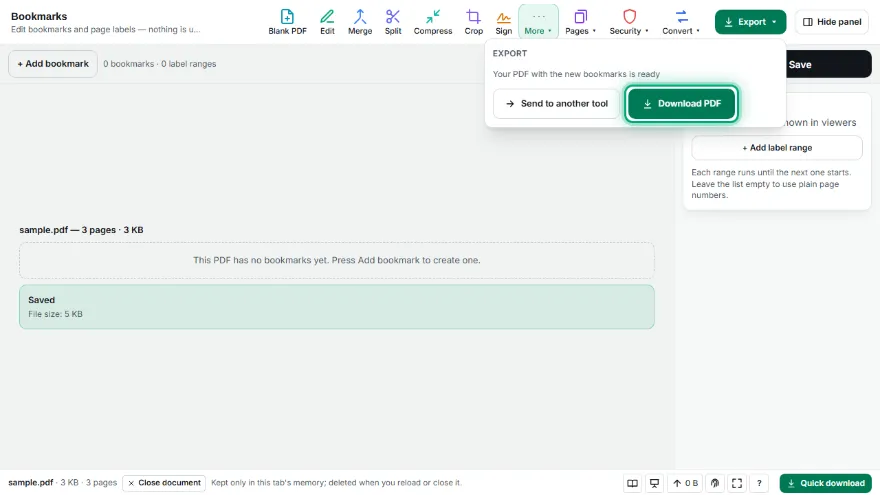
Save and download
A new PDF is written with your bookmarks and labels; the pages themselves are untouched.
Features
- ✓Reads existing bookmarks, including named destinations and go-to links
- ✓Add, rename, delete, reorder and nest bookmarks to any depth
- ✓Each bookmark opens the page you choose
- ✓Page labels: 1, 2, 3 · i, ii, iii · I, II · a, b · A, B, with a prefix such as Appendix- and any start number
- ✓Live preview of how the page numbers will appear in a viewer
- ✓Pages are never modified — only the document's outline and labels
- ✓Runs entirely in your browser — your PDF is never uploaded
Frequently Asked Questions
How do I add bookmarks to a PDF?
Add the PDF, press Add bookmark, type a title and the page it should open. Indent a bookmark to place it under the one above it, then save.
What are page labels?
They are the page numbers a PDF viewer shows, which can differ from the physical page count — for example i, ii, iii for a preface and 1, 2, 3 for the main text, or A-1 for an appendix.
Will my existing bookmarks be kept?
Yes. They are read when the file opens and shown in the list, so you can edit them instead of starting over.
Is my PDF uploaded?
No. Everything happens in your browser; the file never leaves your device.
Does this change the pages?
No. Only the bookmark list and the page labels are written; text, images and fonts stay exactly as they were.