Crop PDF
Trim page margins — text stays selectable.
How It Works
- 1
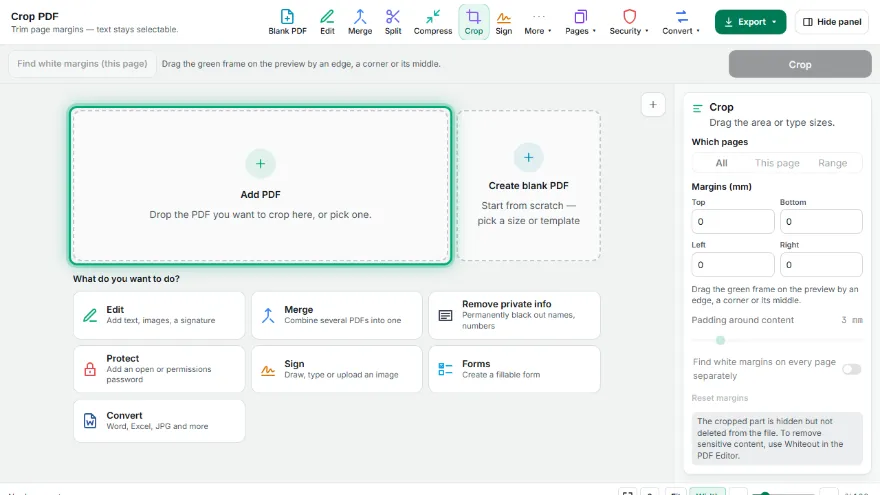
Add your PDF
Pick the PDF you want to crop; the first page opens in the preview.
- 2
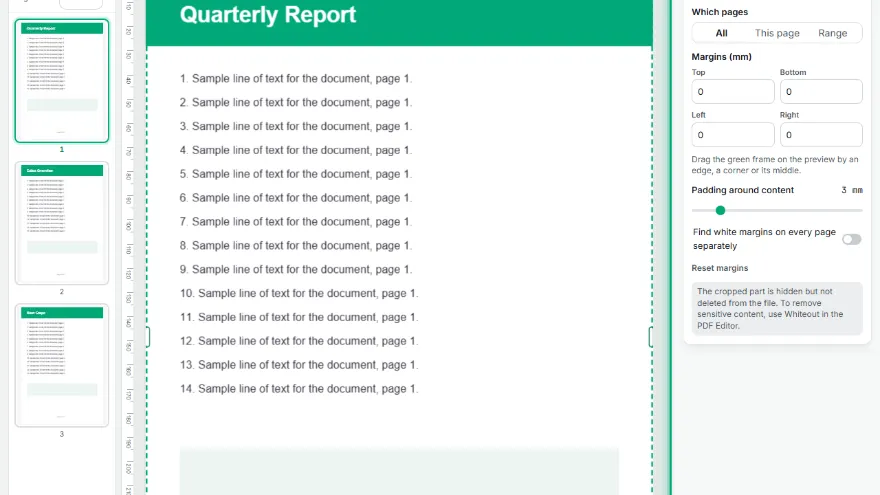
Set the crop area
Drag the green frame by its edges or corners, type the margins in millimeters, or let 'Find white margins' choose them for you.
- 3

Choose the pages
All pages, only this page, or a page range such as '1-3, 5'.
- 4
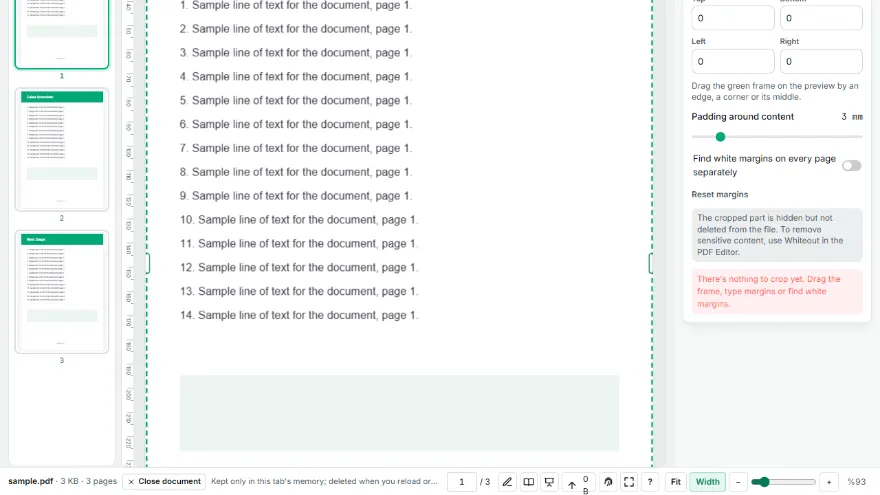
Crop and download
Press Crop, then download the cropped PDF or send it to another PDF tool.
Features
- ✓Crop area you drag on the preview (edges and corners)
- ✓Type margins in millimeters
- ✓Automatic white-margin detection with adjustable padding
- ✓Separate automatic crop for every page
- ✓All pages, a single page or a page range
- ✓Crops rotated pages in the right direction
- ✓Text stays selectable and quality stays the same — pages are not turned into images
- ✓No sign-up, no watermark; your PDF never leaves your device
Frequently Asked Questions
Does cropping reduce quality?
No. Pages are not converted to images; only the visible area of each page is narrowed. Text stays selectable and searchable, and drawings stay sharp.
Is the cropped part deleted from the file?
No, it is hidden. Cropping a PDF changes the page's visible frame; content outside it is no longer shown but remains in the file. To truly remove sensitive content, use Whiteout in the PDF Editor.
How does it find white margins?
It draws the page, finds the outermost points that are not near-white and fits the crop area to them. The padding slider sets how much space stays around the content.
Can I crop each page differently?
Yes. With 'Find white margins on every page' on, each page's margins are detected separately. To adjust by hand, choose 'This page' and crop pages one by one.
Does it work with rotated pages?
Yes. Margins follow the direction you see on screen; the tool takes the page's rotation into account.
Is it free? Do I need an account?
It's free, with no sign-up and no watermark. Your PDF isn't uploaded anywhere.