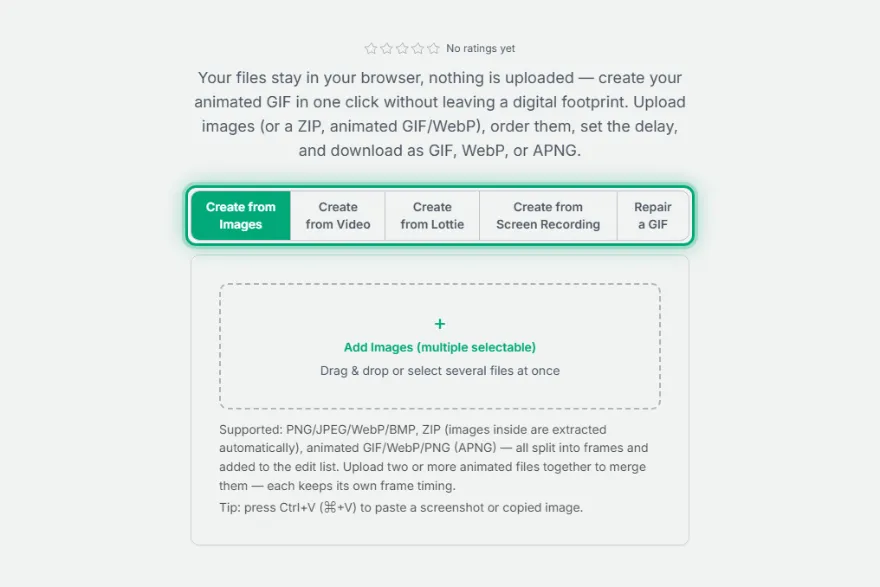
Your files stay in your browser, nothing is uploaded — create your animated GIF in one click without leaving a digital footprint. Upload images (or a ZIP, animated GIF/WebP), order them, set the delay, and download as GIF, WebP, or APNG.
Supported: PNG/JPEG/WebP/BMP, ZIP (images inside are extracted automatically), animated GIF/WebP/PNG (APNG) — all split into frames and added to the edit list. Upload two or more animated files together to merge them — each keeps its own frame timing.
Tip: press Ctrl+V (⌘+V) to paste a screenshot or copied image.
How It Works
- 1
Choose a source
Choose "From Images" or "Create from Video" mode.
- 2
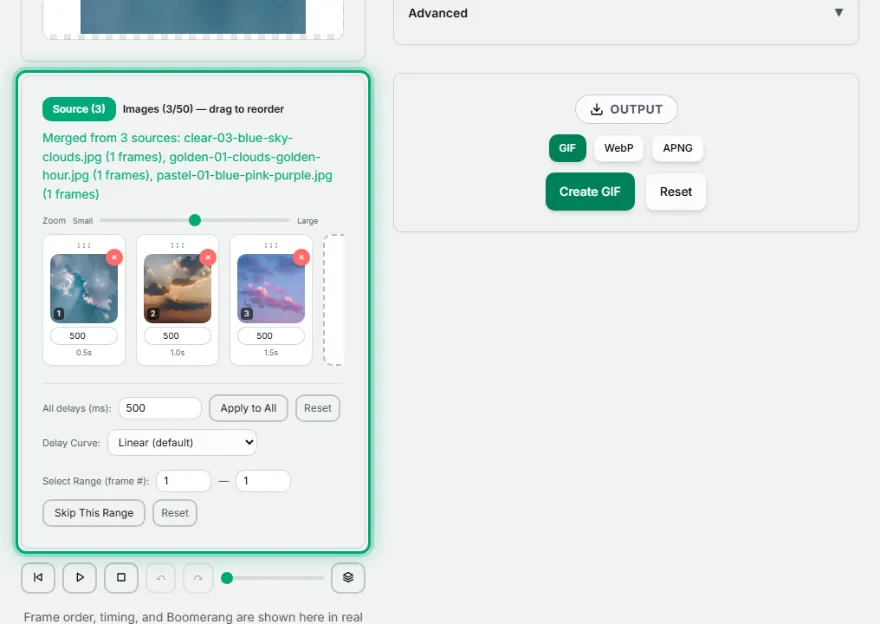
Upload and order
Add up to 50 images and drag to reorder, or upload a video file.
- 3
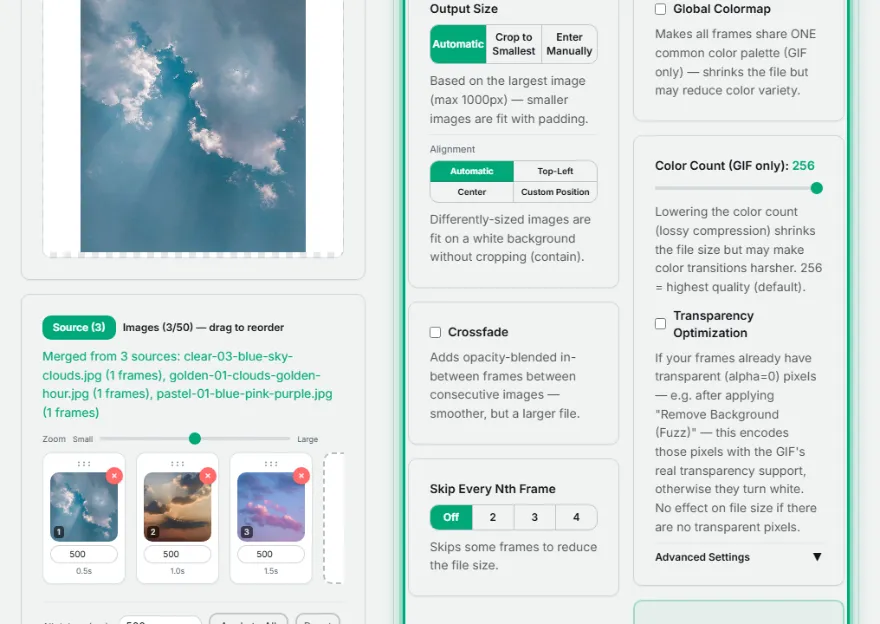
Adjust the settings
Set the delay time, easing curve (linear/ease), crossfade, and loop count.
- 4

Choose a format and download
Export as GIF, WebP, or APNG.
Features
- ✓Two source modes: from images or from video (with frame rate/duration control)
- ✓3 output formats: GIF, animated WebP, APNG
- ✓Crossfade transition, loop count, 4 delay easing curves (linear/ease-in/ease-out/ease-in-out)
- ✓Meme captions, logo/watermark, censor (pixelate/blur) and a progress bar — applied to all frames or just a chosen frame range
- ✓Crop ratio presets (1:1, 16:9, 9:16, 4:5), aspect-locked resize with emoji/sticker size presets, and duplicate-frame removal
- ✓Up to 50 images — a safe limit that doesn't strain browser memory
- ✓Runs entirely in your browser — your images are never uploaded
Frequently Asked Questions
Are my images uploaded to a server?
No. The entire process (ordering, resizing, GIF encoding) happens entirely in your browser — no image is ever sent to any server.
What's the maximum number of images I can add?
Up to 50 images — this limit exists to produce a reasonable GIF without straining browser memory.
Why is my GIF file size large?
GIF file size is directly proportional to the frame count (especially the extra frames added when Crossfade is on), the output width/height, and the color variety in your images. A smaller output size, fewer frames, or turning off Crossfade will shrink the file.
Can I make a GIF from a video too?
Yes, in "Create from Video" mode you can upload a video file and choose the frame rate (FPS) and start/end time.