Settings
Choose format and repeats
Video format
Repeat
Transparent area colour
Video has no transparency; transparent areas are filled with the chosen colour. An odd width or height is trimmed by 1 px.
How It Works
- 1
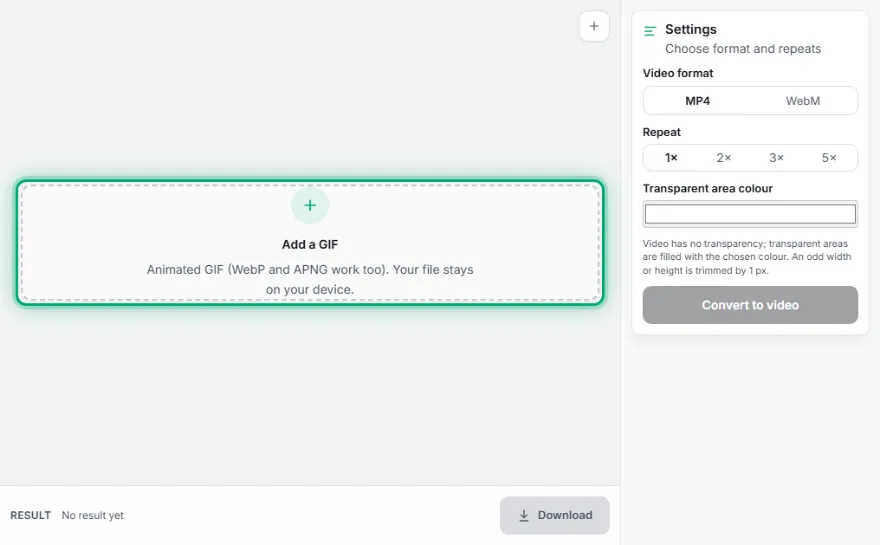
Add the GIF
Choose the GIF to convert.
- 2
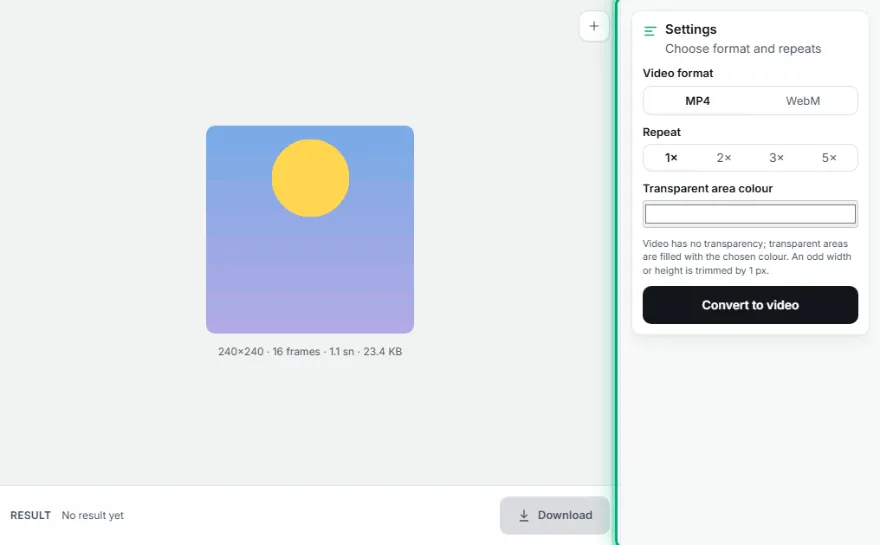
Choose the format
Pick MP4 or WebM and how many times the animation repeats.
- 3

Convert and download
Preview the video and download it.
Features
- ✓MP4 and WebM output
- ✓Frame timing kept exactly
- ✓1×, 2×, 3× or 5× repeat (MP4 doesn't loop by itself)
- ✓Background colour for transparent areas
- ✓Usually a far smaller file than the GIF
- ✓Your file stays on your device, nothing is uploaded
Frequently Asked Questions
Why is MP4 smaller than GIF?
Video compression uses the similarity between frames far more efficiently and has no 256-colour limit, so the same animation is often much smaller.
Does the video loop?
An MP4 file doesn't loop by itself; social platforms usually loop short videos. To repeat it a few times, use the Repeat setting.
What happens to transparent GIFs?
Video has no transparency; transparent areas are filled with the colour you choose.
Which browsers does it work in?
It needs the browser's video encoding support: it works in up-to-date Chrome, Edge and Firefox. If it's unsupported, the tool says so.