Settings
Choose the range and quality
Start (s)
End (s)
Frame rate
Width
At this frame rate up to 20 seconds are taken. Lower the frame rate for longer clips.
How It Works
- 1
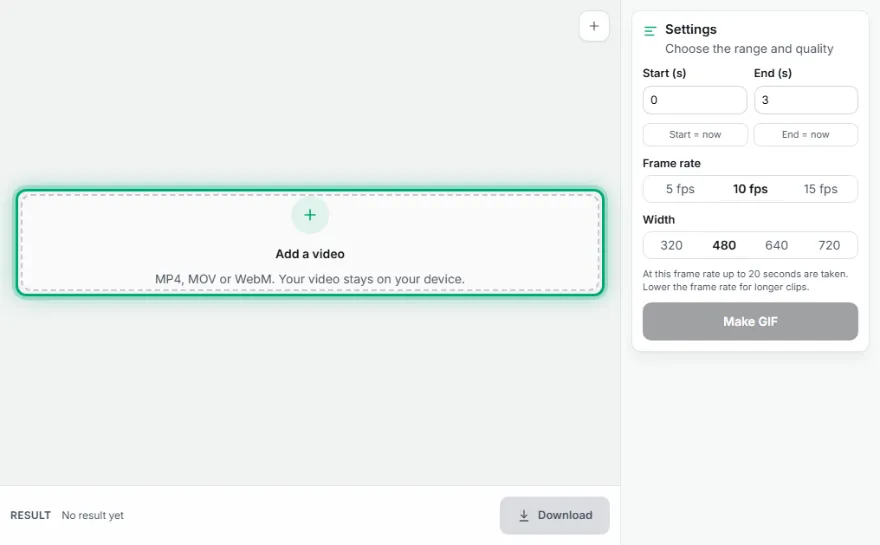
Add the video
Choose your MP4, MOV or WebM file; it plays in the preview.
- 2
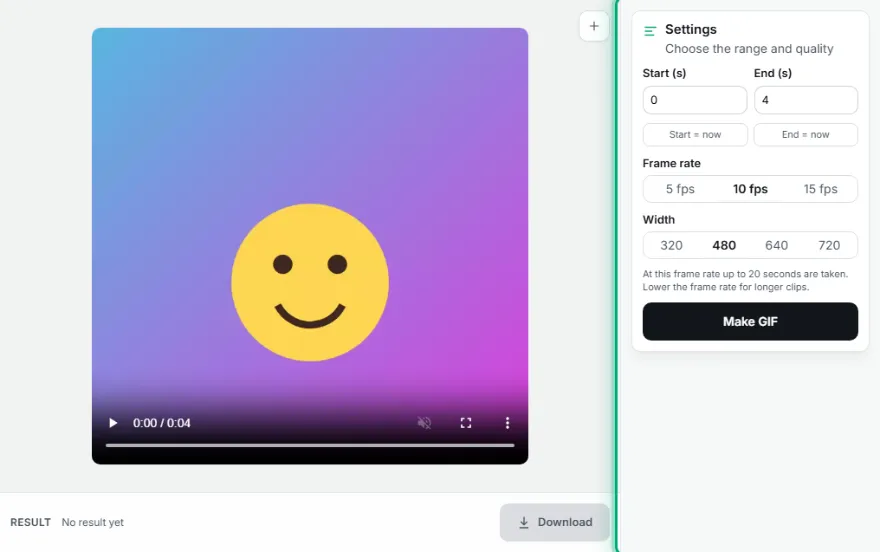
Choose the range
Move the video to the moment you want and press 'Start = now' and 'End = now', or type the seconds.
- 3
Choose the quality
Pick the frame rate (5, 10, 15 fps) and width.
- 4
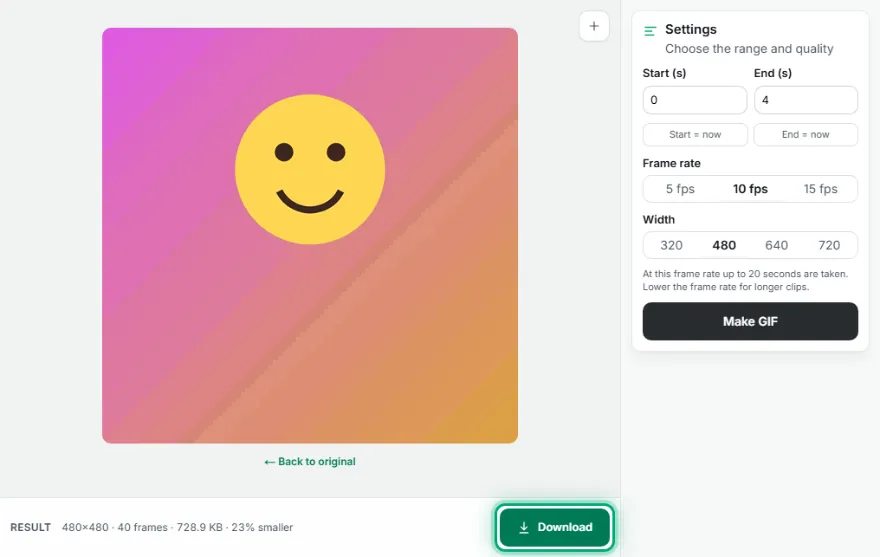
Make and download
Preview the GIF and download it.
Features
- ✓MP4, MOV and WebM
- ✓Pick start and end from the preview
- ✓5, 10 or 15 fps
- ✓320–720 px width
- ✓Extra method for smaller GIFs from static-background videos
- ✓Your video stays on your device, nothing is uploaded
Frequently Asked Questions
How long can the GIF be?
It depends on the frame rate; the longest duration for the selected rate is shown under the settings. Lower the frame rate for longer clips.
Why is the GIF bigger than the video?
GIF is an old format limited to 256 colours with inefficient compression. Reduce the width and frame rate, or shrink the result with Compress GIF.
Do phone videos work?
Yes, iPhone (MOV) and Android (MP4) videos are supported. The browser's video decoding support is needed; it works in up-to-date Chrome, Edge, Firefox and Safari.
Is sound added to the GIF?
No, the GIF format has no audio.