PowerPoint to PDF
Turn a presentation into a PDF — the file never leaves your device.
How It Works
- 1
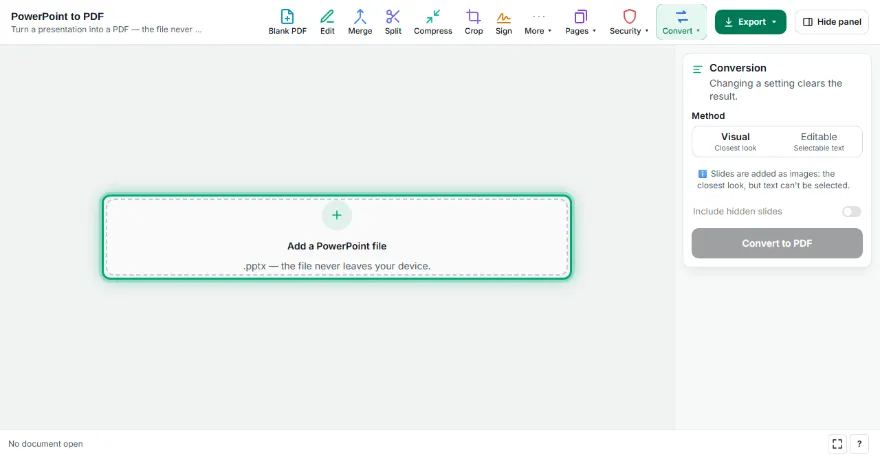
Add your presentation
Choose a .pptx file. Slides appear as thumbnails; anything that can't be added (e.g. charts) is listed.
- 2
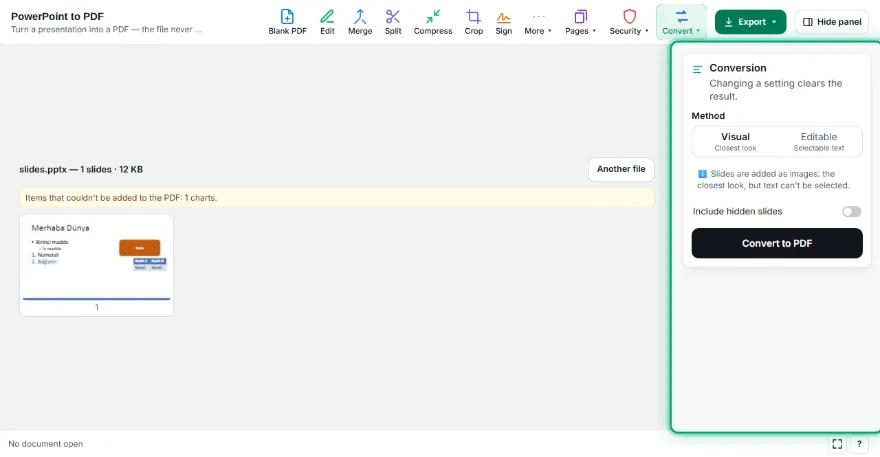
Choose a method
“Visual” adds slides as images with the closest look. “Editable” adds shapes as vectors and text as real text, so it can be selected and searched.
- 3

Download the PDF
Press “Convert to PDF” and download the file, or send it to another PDF tool.
Features
- ✓Two methods: Visual (closest look) and Editable (selectable text)
- ✓Master and layout design, theme colours
- ✓Shapes, bullets, tables, images
- ✓Clickable links (Editable)
- ✓Optionally include hidden slides; the file never leaves your device
Frequently Asked Questions
Which method should I choose?
For sharing and printing, “Visual” gives the closest result. If you want to copy or search text in the PDF, choose “Editable”.
Why are charts and SmartArt missing?
These items can't be drawn yet; the tool tells you how many there are before converting. If they matter, use PowerPoint's own “Save as PDF”.
What about animations and speaker notes?
The PDF gets the final state of each slide; animations and notes aren't included.
Can old .ppt files be opened?
No. Save the file as .pptx in PowerPoint (Save As) and try again.
Is my file uploaded?
No. The presentation is opened and converted in your browser and isn't sent anywhere.