Split PDF
Separate a PDF into several files — nothing leaves your browser.
How It Works
- 1
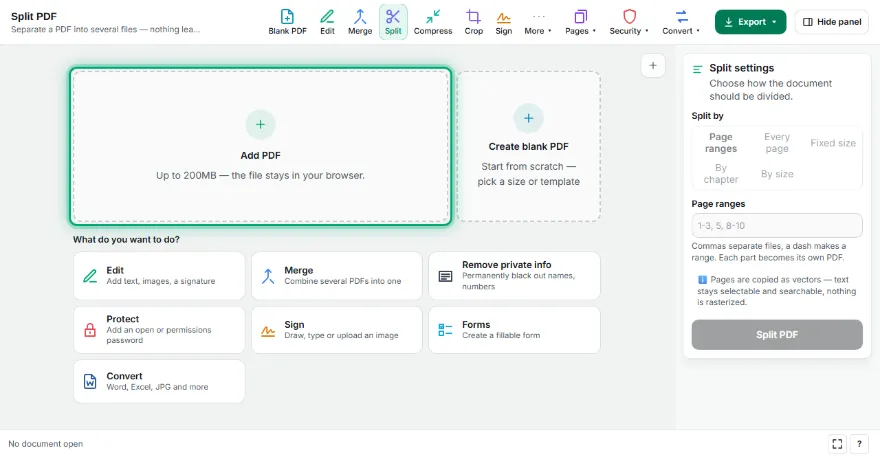
Add your PDF
Choose the PDF you want to split. It stays in your browser.
- 2
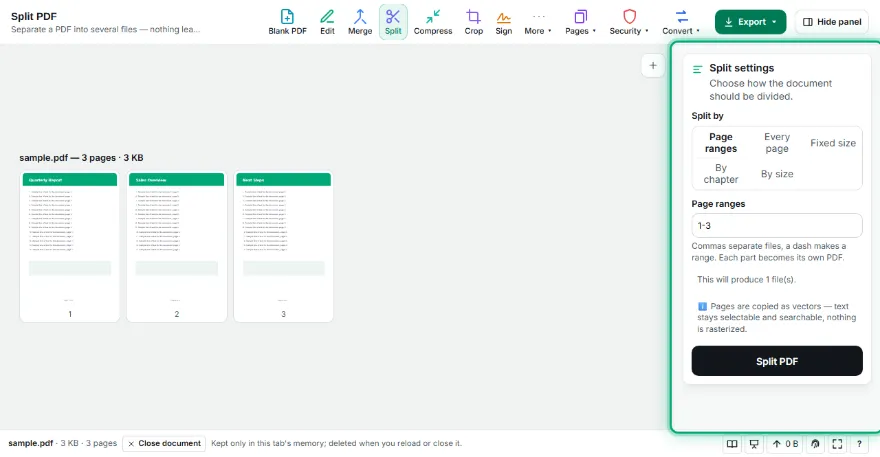
Pick how to split
By page ranges (e.g. 1-3, 7), one file per page, or a fixed number of pages per file.
- 3

Split
Each part is built as its own PDF, with the pages copied as vectors.
- 4
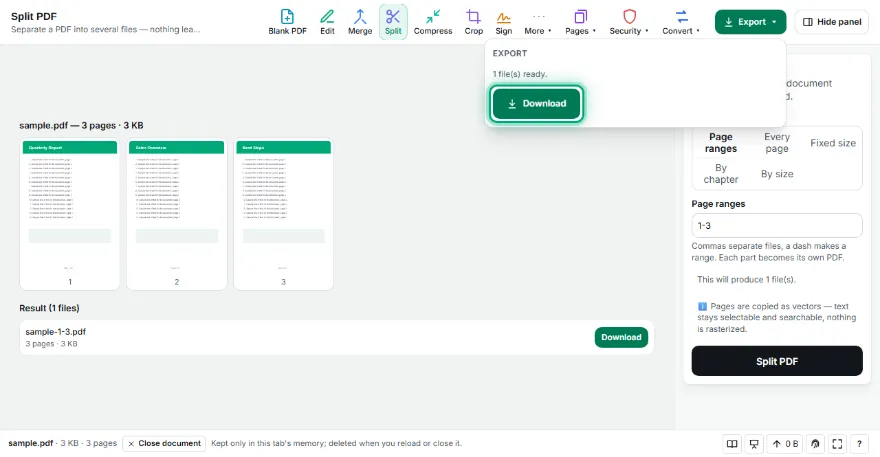
Download
Download parts one by one, or all of them at once as a ZIP.
Features
- ✓Split by chapter using the PDF's bookmarks
- ✓Split by maximum file size, e.g. for email attachments
- ✓Three ways to split: page ranges, one file per page, or fixed-size chunks
- ✓Pages are copied as vectors — text stays selectable and searchable, nothing is rasterized
- ✓Download each part separately or all at once as a ZIP
- ✓Page thumbnails so you can check what you are splitting
- ✓Runs entirely in your browser — your PDF is never uploaded, no account needed
Frequently Asked Questions
Is my PDF uploaded to a server?
No. The whole split happens in your browser — the file never leaves your device and no account is needed.
Does splitting reduce quality or make the text unselectable?
No. Pages are copied as vectors, not re-rendered as images, so text stays selectable and searchable and the file size stays close to the original.
How do I write page ranges?
Use commas between parts and a dash inside a part — for example "1-3, 5, 8-10" produces three files. Each part becomes its own PDF.
Can I split a large scanned document?
Yes, up to 200MB. Only the first 12 pages are shown as thumbnails to keep the browser responsive, but every page is included in the split.