Removal Settings
Controls are visible even before you add an image
Scene type
Can give better results in complex scenes with multiple people or objects.
Quality
Balanced speed and quality — enough for most photos.
Background
Size
Batch

The model downloads once and stays on this device; nothing from your image is sent while it downloads.
How It Works
- 1
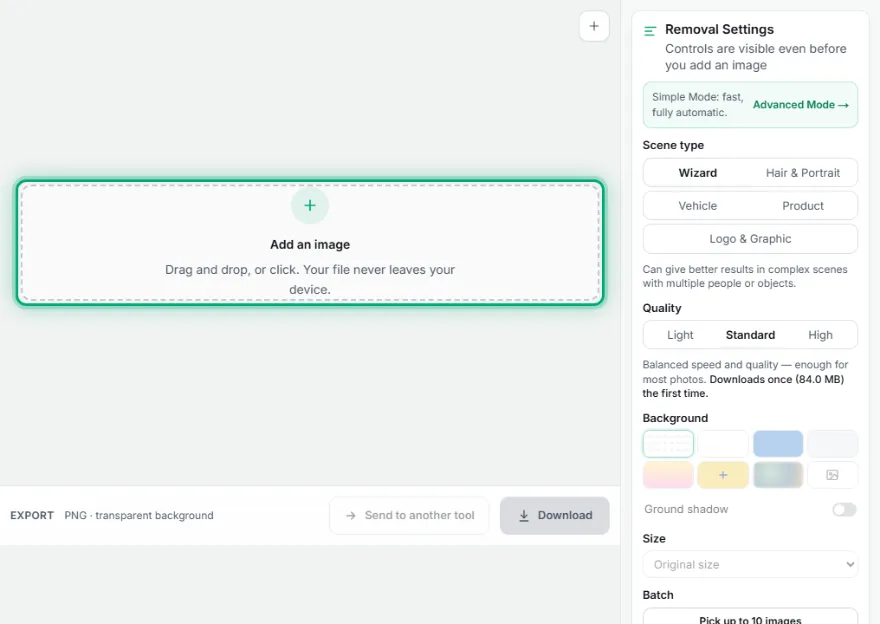
Upload your photo
Drag and drop your image, or pick it from the file browser. It never leaves your device.
- 2
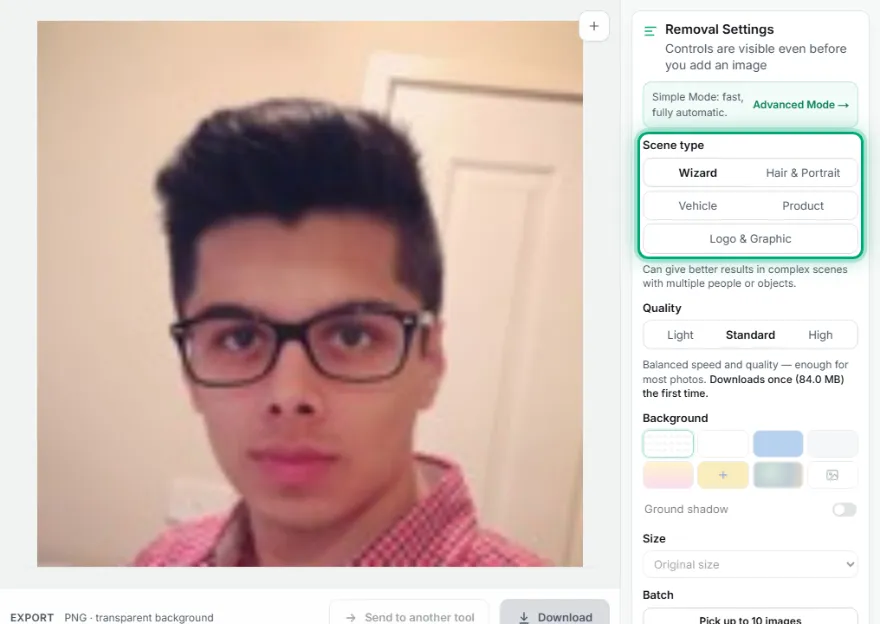
Choose a scene type
Wizard works for almost anything; Portrait gives the best hair detail, and Vehicle or Object suit product and car shots.
- 3
Pick a background
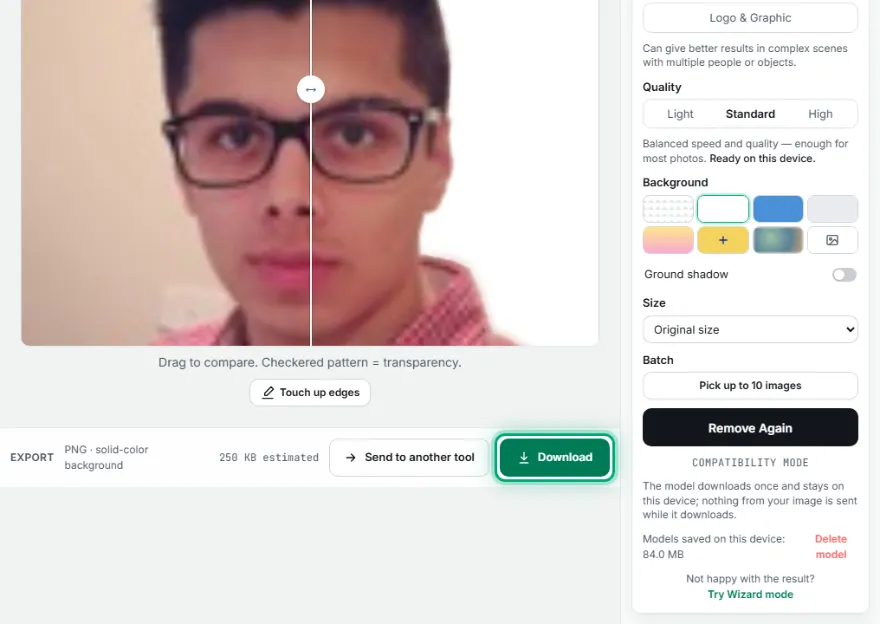
Keep it transparent, pick white, blue, gray or any custom color, blur the original backdrop, or drop in your own background image. Use Touch up edges to erase leftovers or restore cut-off parts.
- 4
Download
Export the result as a PNG — transparent or with your chosen background baked in.
Features
- ✓Five scene types (Wizard, Portrait, Vehicle, Product, Logo) for a more accurate auto-cutout
- ✓Background swap: transparent, preset or custom color, blurred original, or your own image
- ✓Light, Standard and High quality levels
- ✓Before/after slider to check the result before downloading
- ✓Runs entirely in your browser — no image is ever uploaded to a server
- ✓Erase / Restore brush with undo to touch up edges by hand
Frequently Asked Questions
Can I fix the edges by hand?
Yes. After the cutout, click "Touch up edges": paint with Erase to remove leftovers, or switch to Restore to bring back parts that were cut off, with undo. For Magic Wand, Lasso or Pen tools, use the "Advanced Mode" link.
Is my photo uploaded anywhere?
No — the cutout runs entirely in your browser. Nothing is sent to a server.
What's the difference between Light, Standard and High quality?
Standard is the best balance for most photos and is the default. Light downloads a model half the size, so first use is quicker on a slow connection; processing takes a little longer than Standard and quality is very close. High gives the cleanest result on several objects, thin lines and product edges, but it is several times slower and needs a lot of memory, so a powerful computer is recommended. Each level's model downloads once, the first time you use it.
Which scene type should I pick?
Start with Wizard — it handles most photos. Portrait captures fine hair detail best for a single person; Vehicle and Object are tuned for cars and products.
What file format can I download?
PNG — it keeps true transparency, and also stores the color, blurred or image background you choose in full quality.