Extract Images from PDF
Save embedded images in original quality.
How It Works
- 1
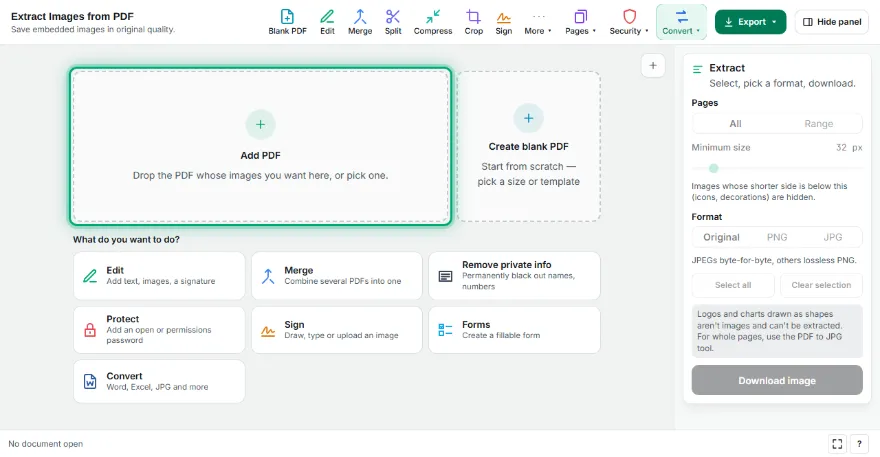
Add your PDF
Pick the PDF; the tool finds the embedded images on every page and shows them in a grid.
- 2
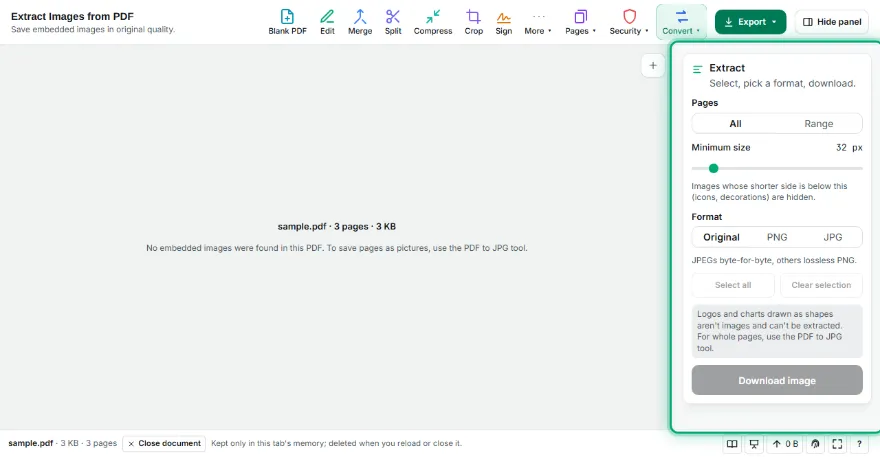
Choose the images
Click images to select or deselect them. Use the minimum size slider to hide small icons.
- 3
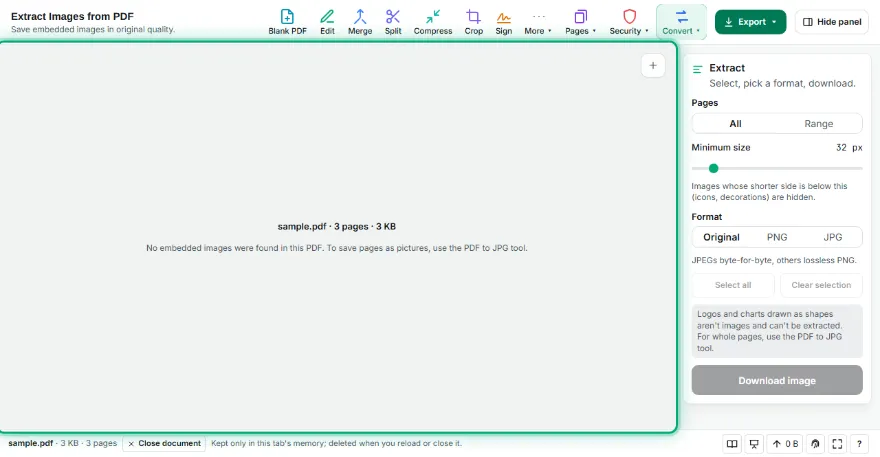
Pick a format
Original (JPEGs as-is, others PNG), all PNG, or all JPG.
- 4
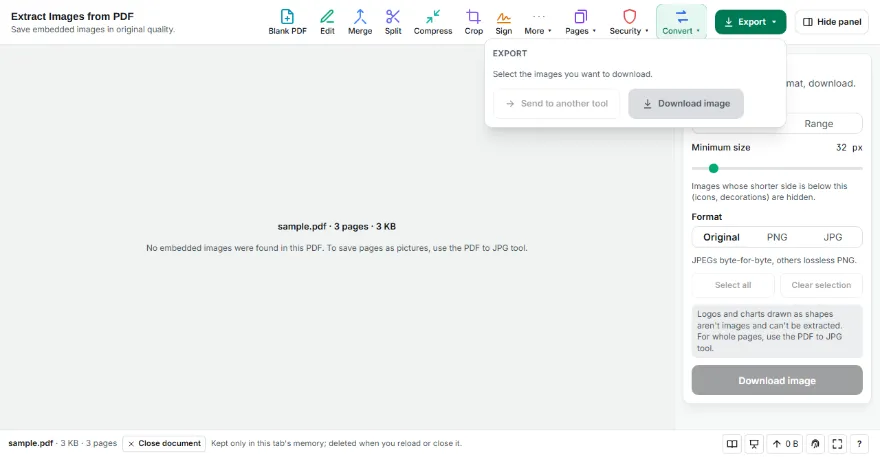
Download
Save a single image with its own button, or your selection as one ZIP file.
Features
- ✓Embedded JPEGs are saved byte-for-byte — no re-compression
- ✓Other images as lossless PNG, transparency kept
- ✓Preview grid: pick exactly the images you want
- ✓Minimum size filter hides small icons and decorations
- ✓Download one by one or as a single ZIP
- ✓All pages or a page range
- ✓An image used on several pages is listed once
- ✓No sign-up, no watermark; your PDF never leaves your device
Frequently Asked Questions
Are the images extracted in original quality?
Yes. Images embedded as JPEG are saved untouched in the Original format — the exact same bytes. Other images are written as lossless PNG, so no pixels are lost.
Why aren't some logos and charts extracted?
They are drawn on the page as vector shapes, not images. To get whole pages as pictures, use the PDF to JPG tool.
How do I hide small icons?
The 'Minimum size' slider hides images whose shorter side is below that value. Set it to 0 to show everything.
What happens to transparent images?
PNG and Original keep transparency. If you choose JPG, transparent areas are placed on white.
Will the same image be extracted once per page?
No. An image used on several pages is listed once, with the page where it first appears.
Is it free? Do I need an account?
It's free, with no sign-up and no watermark. Your PDF isn't uploaded anywhere.