Size and layout
The preview updates instantly
Platform
Sizes (tick for ZIP)
The red areas show where the story/Reels/Shorts/TikTok interface (profile name, caption, buttons) usually sits, and the edges of a YouTube channel banner that are not visible on every device; for profile sizes the circle the platform displays is drawn. These are approximate areas that can change as platforms update their layouts. Guides only appear in the preview, never in the downloaded file.
How It Works
- 1
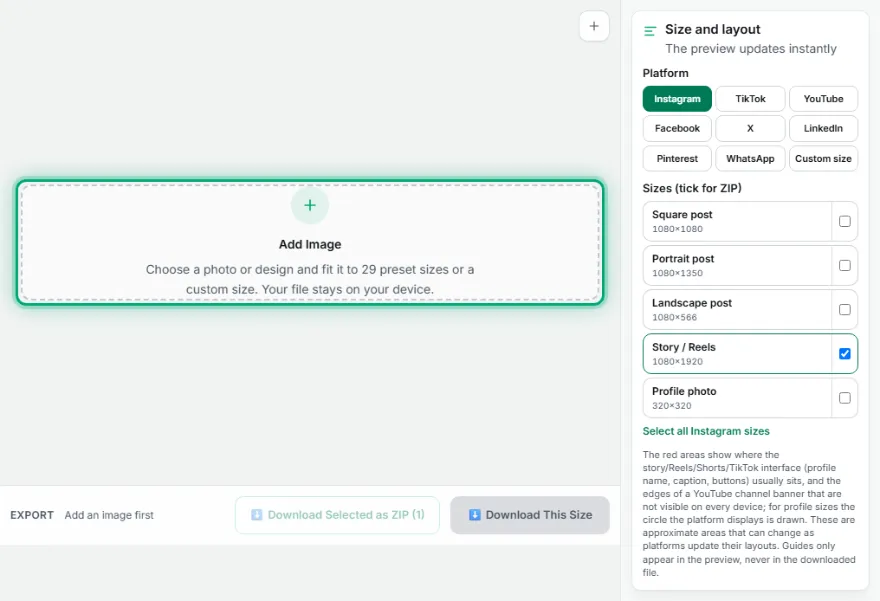
Upload your image
Choose the photo or design you want to adapt.
- 2
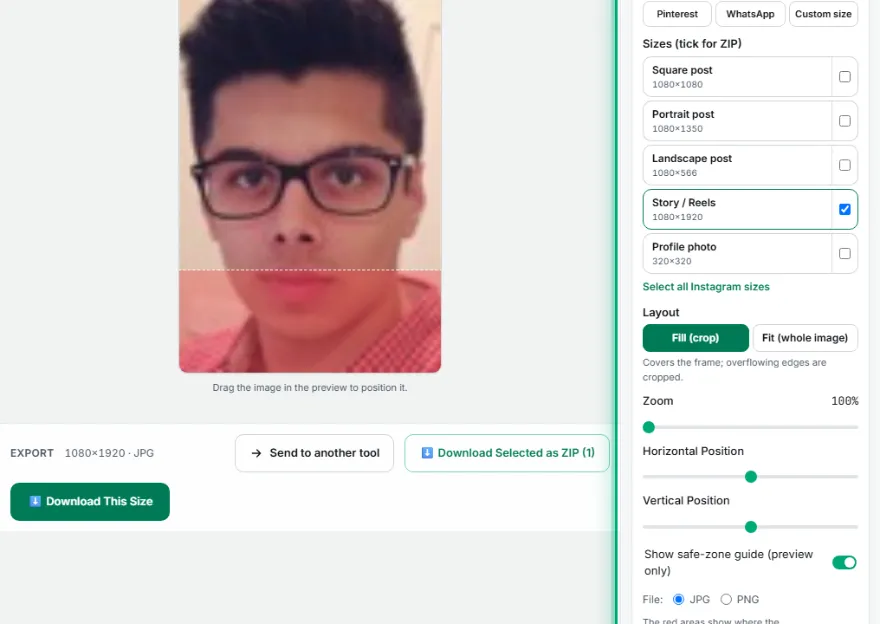
Pick a platform and size
Open the Instagram, TikTok, YouTube, Facebook, X, LinkedIn, Pinterest or WhatsApp tab and choose a profile, cover, post or story size, or enter a custom size.
- 3
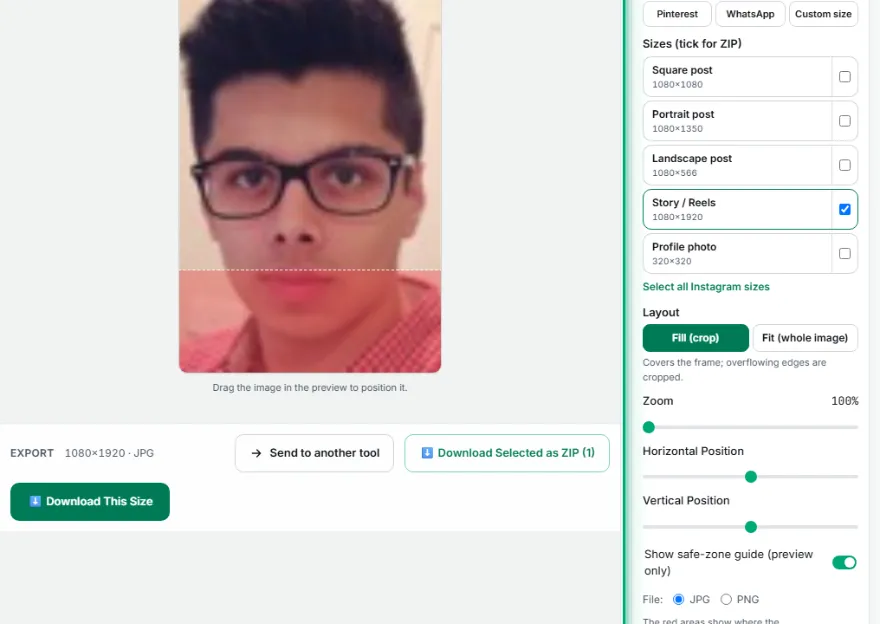
Fill or Fit
Fill covers the frame and crops the overflow; drag and zoom to position it. Fit keeps the whole image and fills the empty space with a blurred or solid background.
- 4
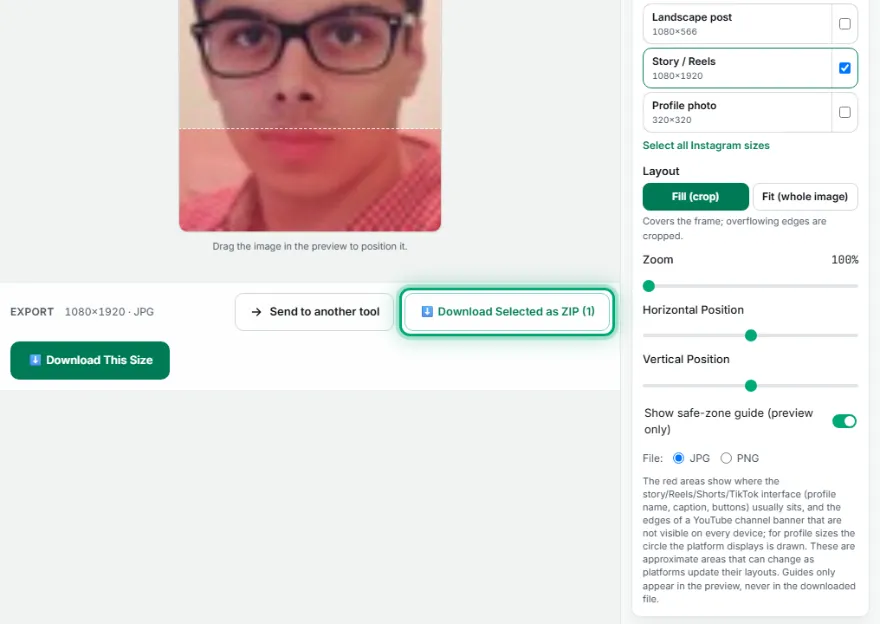
Download
Download this size as a single file, or all ticked sizes as one ZIP, in JPG or PNG.
Features
- ✓8 platforms, 29 preset sizes: Instagram, TikTok, YouTube, Facebook, X, LinkedIn, Pinterest, WhatsApp
- ✓Profile photo, cover/banner, post, story/Reels/Shorts and thumbnail sizes
- ✓Custom width × height
- ✓Fill (crop, drag, zoom) or Fit (blurred or solid background)
- ✓Circle preview for profile photos, safe-zone guide for stories and YouTube channel banners
- ✓Separate position and zoom for every size
- ✓Download the chosen sizes as one ZIP, JPG or PNG output
- ✓Your photo stays on your device
Frequently Asked Questions
Which platforms and sizes are included?
Instagram (1080×1080 square, 1080×1350 portrait, 1080×566 landscape, 1080×1920 story/Reels, 320×320 profile), TikTok (1080×1920, 200×200 profile), YouTube (1280×720 thumbnail, 2560×1440 channel banner, 1080×1920 Shorts, 800×800 profile), Facebook (1200×630 shared post, 1080×1080 square, 1080×1920 story, 851×315 cover, 320×320 profile), X (1600×900 post, 1500×500 header, 400×400 profile), LinkedIn (1200×627 post, 1080×1080 square, 1584×396 personal banner, 1128×191 company cover, 400×400 profile), Pinterest (1000×1500, 1000×1000, 1000×2100) and WhatsApp (1080×1920 status, 640×640 profile). You can also enter a custom size.
What is the difference between Fill and Fit?
Fill enlarges the image until it covers the whole frame and crops the edges that overflow; you choose the visible part by dragging and zooming. Fit places the whole image in the frame without cropping and fills the remaining space with a blurred copy of the image or a solid colour of your choice.
Can I see how my profile photo looks inside the circle?
Yes. For profile sizes the preview draws the circle the platforms display and darkens the corners, so you can drag your face to the centre. The downloaded file is square; the circle outline is not added to it.
What is the safe zone?
On stories, Reels, Shorts and TikTok the profile name, caption and buttons cover the top and bottom of the screen, and on a YouTube channel banner only the middle strip is visible on every device. The red areas mark these approximate regions. The guide only appears in the preview, never in the downloaded file.
Can I download several sizes at once?
Yes. Tick the boxes next to the sizes (you can mix platforms) and press 'Download selected as ZIP'. Each size is saved with the position and zoom you set for it.
Are the sizes up to date?
They are the sizes the platforms recommend and that are widely used. Platforms change their layouts and recommendations from time to time; if you need a different size, use the Custom size tab.