Upscale settings
Pick a model and a scale factor, then upscale.
Content Type
Model
Scale
Applies light blurring before upscaling — gives the model a cleaner input on low-quality/JPEG-artifact source images.
After upscaling, applies light sharpening ONLY to flat/low-detail areas (like foreheads, hair-skin edges, short hair) that tend to be over-smoothed — already-sharp areas are left untouched.
ℹ️ Upscaling works by predicting likely detail — for very low-quality/blurry sources, try "Noise Reduction" first. Large images, especially at 4x and above, may take a few minutes; processing continues as long as the page stays open.
How It Works
- 1
Add your photos
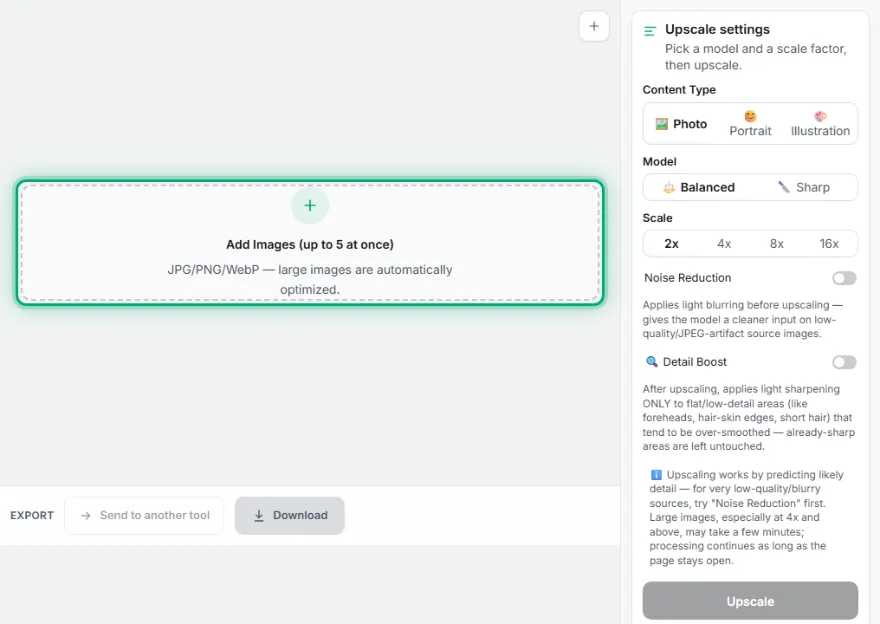
Choose up to 5 images you want to upscale.
- 2
Pick a model
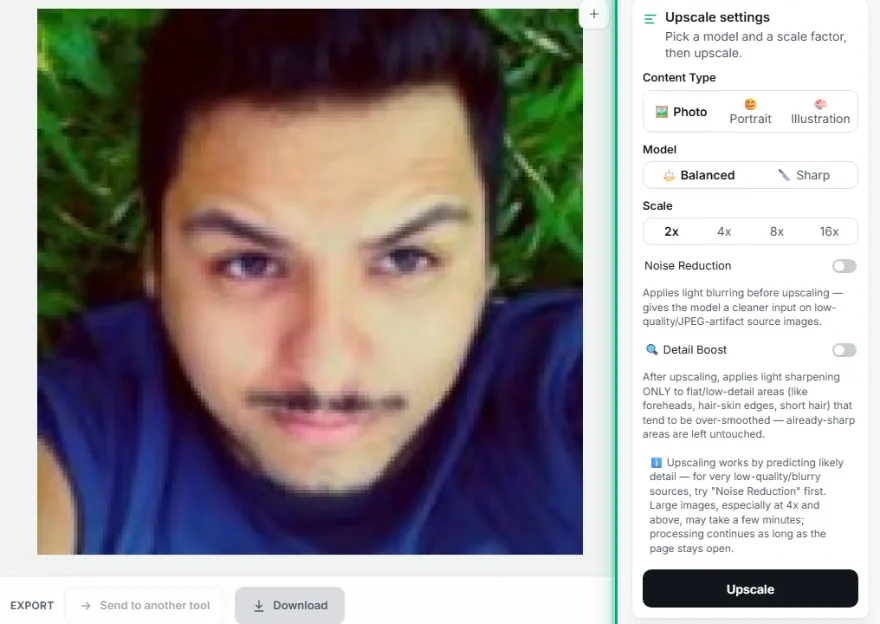
Choose "Balanced" (2x–16x, evenly balanced results) or "Sharp" (4x only, more pronounced detail).
- 3
Choose a scale factor

Depending on the model, pick a factor of 2x, 4x, 8x, or 16x.
- 4
Download
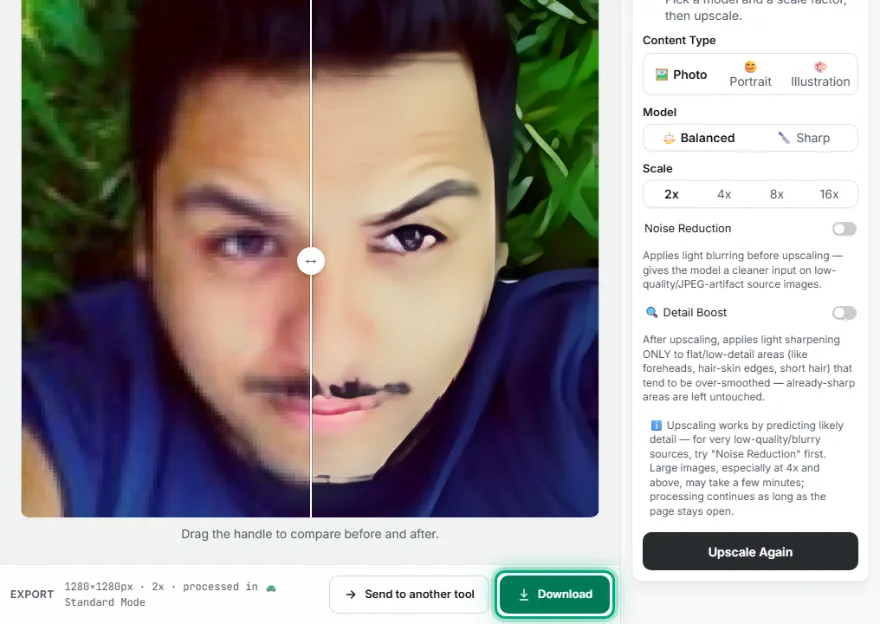
Download a single result directly, or get every image at once as a ZIP.
Features
- ✓Two models: "Balanced" (all of 2x/4x/8x/16x) and "Sharp" (4x only, noticeably crisper detail)
- ✓Up to 5 images at a time, with a single ZIP download for the whole batch
- ✓Automatic hardware acceleration where available, with a safe fallback to standard mode otherwise
- ✓An honest limit: upscaling GENERATES plausible detail rather than recovering lost information — it's an educated reconstruction, not a true zoom-in
- ✓An invisible marker for technical verification only — re-uploading an already-upscaled image will show a heads-up
- ✓Runs entirely in your browser — your photo is never uploaded, no account needed
Frequently Asked Questions
Does upscaling really recover lost detail?
No — this tool invents plausible detail that never existed in the original file rather than truly recovering lost information. On a very blurry or low-resolution image, the result is a best-effort reconstruction, not ground truth.
What's the difference between "Balanced" and "Sharp"?
Balanced supports every factor from 2x to 16x with an even result. Sharp only offers 4x, but produces a noticeably crisper result in the same time.
Can I upscale several images at once?
Yes — add up to 5 images and they are processed one after another (a single AI engine runs at a time so your device stays responsive). When more than one is finished you can download them all as a ZIP.
Is my photo uploaded to a server?
No. Upscaling happens entirely in your browser — no account needed.