PDF to EPUB
Turn a PDF into a reflowable eBook.
How It Works
- 1
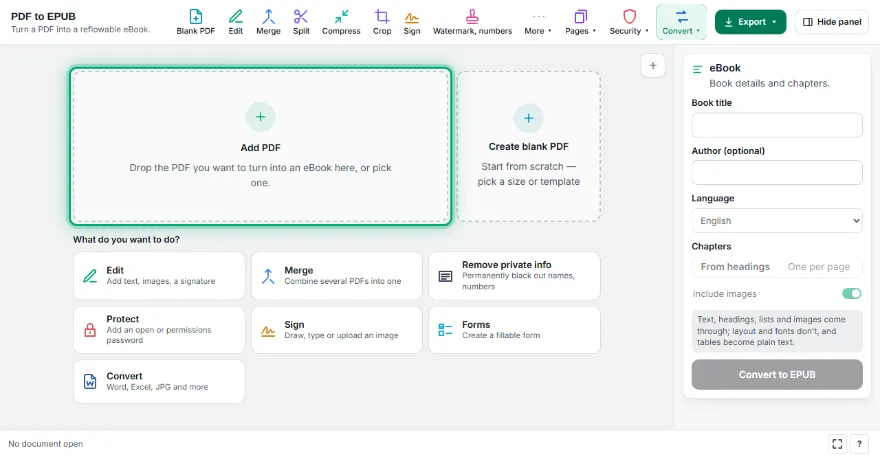
Add your PDF
Pick the PDF you want to turn into an eBook.
- 2
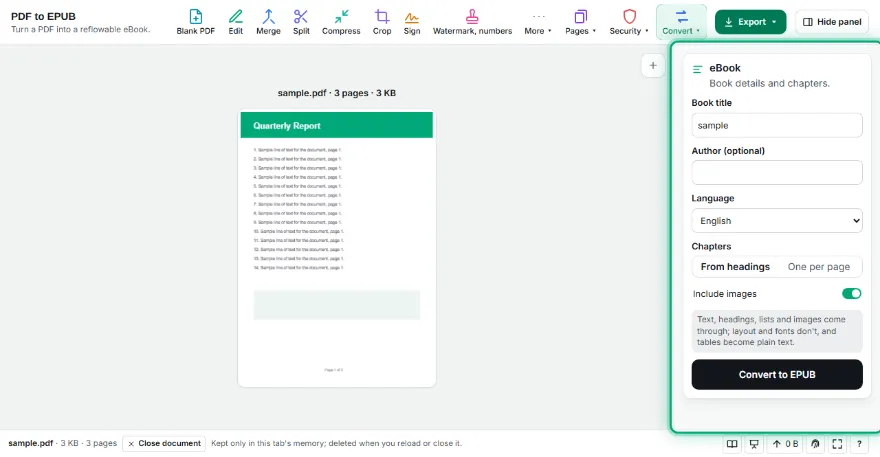
Enter book details
Title, author and language; choose whether chapters come from headings or pages.
- 3

Convert to EPUB
Press Convert to EPUB; the chapter list and table of contents are built.
- 4
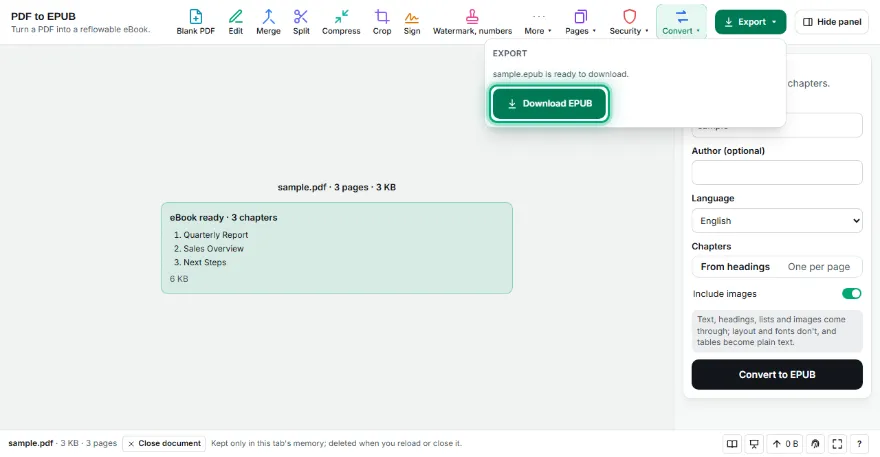
Download and read
Send the EPUB to your e-reader, Apple Books or any EPUB app.
Features
- ✓EPUB 3: reflowable text that fits any screen
- ✓Chapters from top-level headings or from PDF pages
- ✓Automatic table of contents
- ✓Headings, subheadings and lists kept; paragraphs joined
- ✓Images (JPEGs untouched) added to chapters
- ✓Title, author and language metadata
- ✓No sign-up; your PDF never leaves your device
Frequently Asked Questions
What's the difference between PDF and EPUB?
A PDF has fixed pages, so you zoom on small screens. EPUB reflows text to fit the screen and lets you change the font size. This tool turns a PDF's text into a reflowable eBook.
Does it open on Kindle?
Current Kindle apps and 'Send to Kindle' accept EPUB. Kobo, Apple Books, Google Play Books and most e-readers open it directly.
Is the page layout kept?
No — EPUB is about reflow. Text, headings, lists and images come through; columns, fonts and fixed positions don't, and tables become plain lines of text.
Does it work on scanned PDFs?
Scanned pages contain no text. Make a searchable PDF with PDF OCR first, then convert it to EPUB.
Is it free? Do I need an account?
It's free, with no sign-up. Your PDF isn't uploaded anywhere.