PDF to Word
Turn a PDF into an editable Word document.
How It Works
- 1
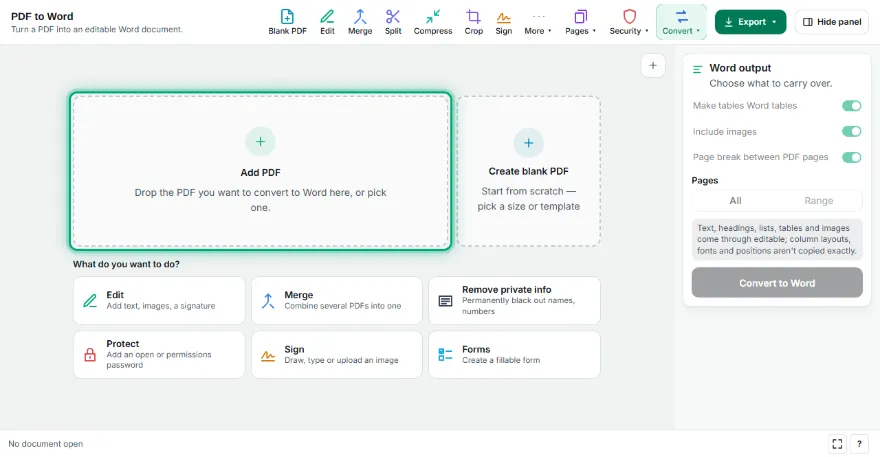
Add your PDF
Pick the PDF you want to convert to Word.
- 2
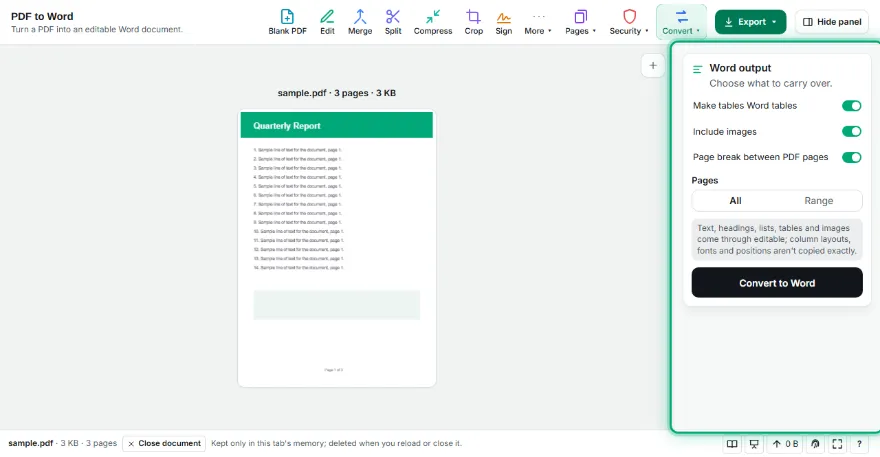
Set options
Choose whether to include tables, images and page breaks, and which pages to convert.
- 3

Convert to Word
Press Convert to Word; headings become Word heading styles and lists become Word lists.
- 4
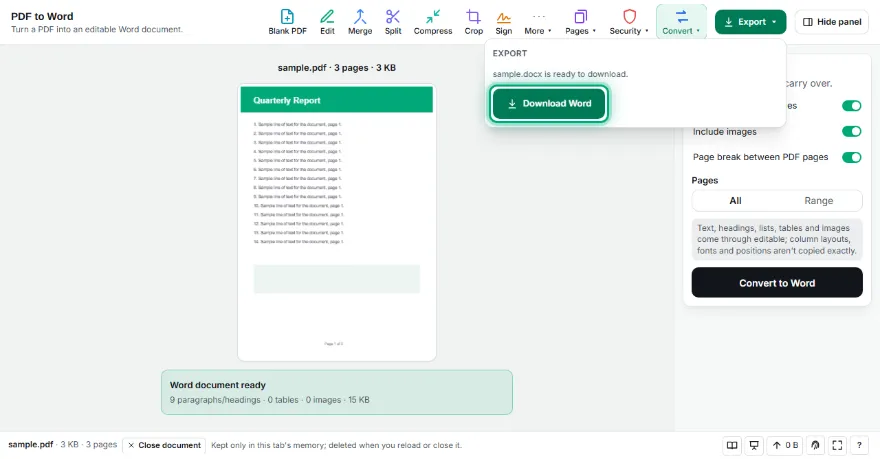
Download and edit
Download the DOCX and open it in Word, Google Docs or LibreOffice.
Features
- ✓Headings as Word heading styles (Heading 1–3)
- ✓Paragraphs joined, end-of-line hyphens fixed
- ✓Bulleted and numbered lists as real Word lists
- ✓Tables as bordered Word tables, in place in the text
- ✓Images in original quality (JPEGs untouched)
- ✓Page breaks and page range selection
- ✓No sign-up; your PDF never leaves your device
Frequently Asked Questions
Will the Word document look exactly like the PDF?
No — the goal is an editable document. Text, headings, lists, tables and images come through, but column layouts, text boxes, fonts and exact image positions aren't copied. To keep the document as-is, use the PDF Editor.
Does it work on scanned PDFs?
Scanned pages are images with no text. Make a searchable PDF with PDF OCR first, then convert it to Word.
Where do the images appear?
Each page's images are added after that page's text. Images embedded as JPEG are carried over without re-compression.
Which programs can open it?
Microsoft Word, Google Docs, LibreOffice Writer, Apple Pages and any program that opens DOCX.
Is it free? Do I need an account?
It's free, with no sign-up. Your PDF isn't uploaded anywhere.