PDF Watermark Remover
Delete watermarks and stamps from a PDF.
How It Works
- 1
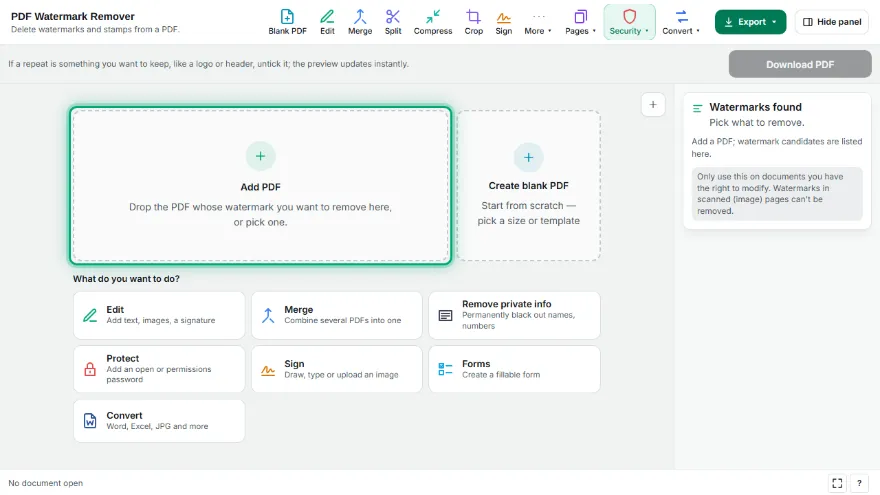
Add your PDF
Pick the watermarked PDF; the tool finds watermark candidates.
- 2
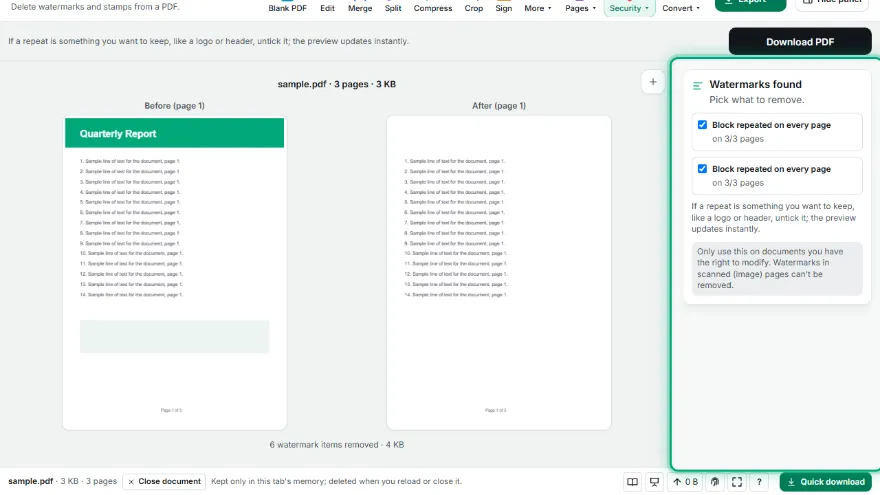
Check the candidates
See the text inside each candidate and how many pages it's on; untick anything you want to keep.
- 3

Look at the preview
Compare the first page before and after side by side.
- 4
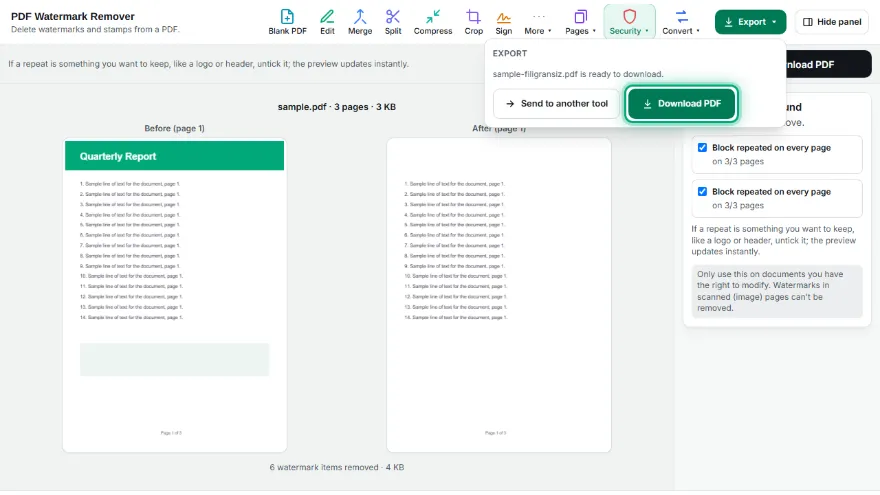
Download
Download the clean PDF or send it to another PDF tool.
Features
- ✓Removes watermark annotations
- ✓Removes tagged watermarks added by Acrobat and similar tools
- ✓Finds stamp, logo and text blocks repeated on every page
- ✓Candidates listed with their text and page count, picked one by one
- ✓Before/after preview of the first page
- ✓Text, images and layout kept; pages aren't turned into images
- ✓No sign-up; your PDF never leaves your device
Frequently Asked Questions
Which watermarks can it remove?
Watermarks added as a separate layer: watermark annotations, content Acrobat tags as 'Watermark', and stamp/text blocks printed identically on every page (e.g. 'CONFIDENTIAL', 'DRAFT', logos).
Which watermarks can't be removed?
In scanned documents the watermark is part of the page image; watermarks drawn in the same block as the main content can't be separated either. In that case the tool says no removable watermark was found.
Does the rest of the document change?
No. Only the blocks you select are deleted; text stays selectable and images and layout are kept. Check the result in the preview.
Is this legal?
Only use it on documents you have the right to modify — your own files or files you're allowed to remove the watermark from.
Is it free? Do I need an account?
It's free, with no sign-up. Your PDF isn't uploaded anywhere.