Vectorization Settings
Pick a preset, then fine-tune
Source
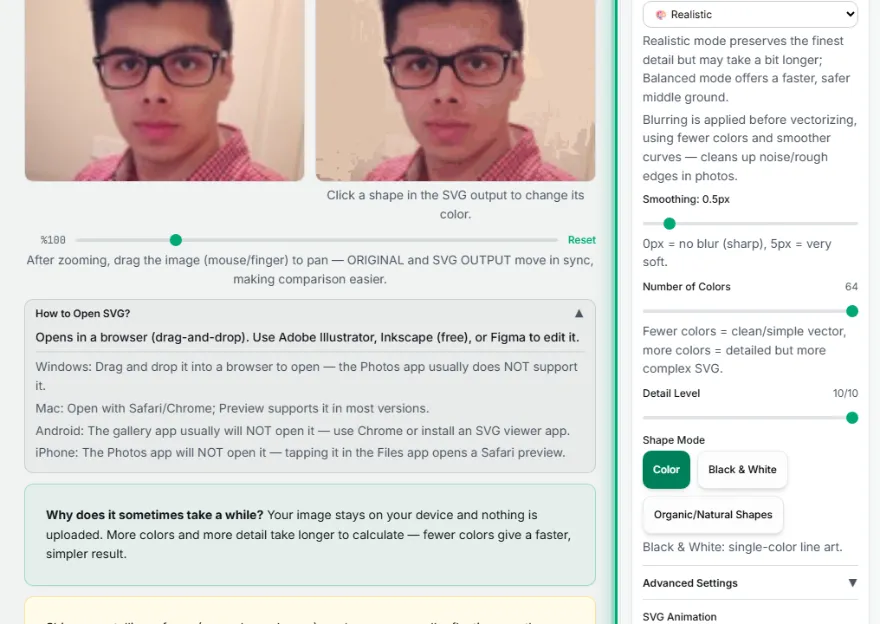
Realistic mode preserves the finest detail but may take a bit longer; Balanced mode offers a faster, safer middle ground.
Blurring is applied before vectorizing, using fewer colors and smoother curves — cleans up noise/rough edges in photos.
0px = no blur (sharp), 5px = very soft.
Fewer colors = clean/simple vector, more colors = detailed but more complex SVG.
Black & White: single-color line art.
How It Works
- 1
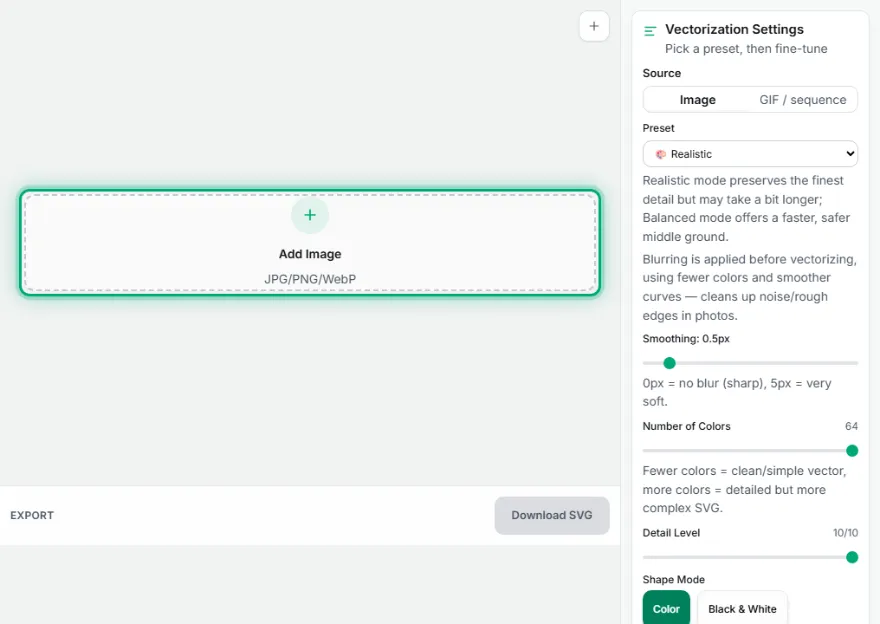
Upload your image
Choose your JPG, PNG, or WebP file.
- 2
Pick a preset
Choose between Realistic, Balanced, Logo/Simple Graphic, or Organic/Natural Shapes.
- 3
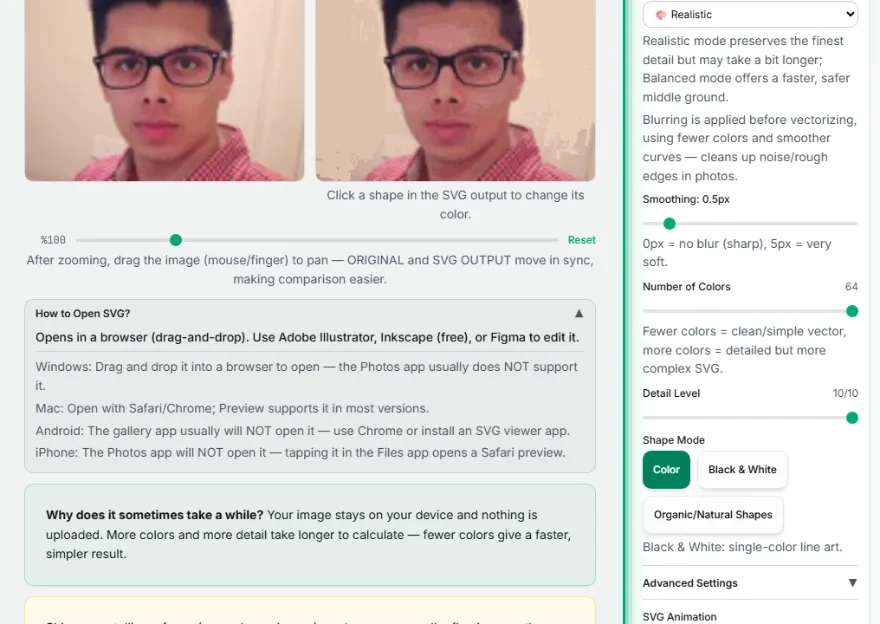
Fine-tune
Manually adjust the color count (2-64) and detail level if you like.
- 4
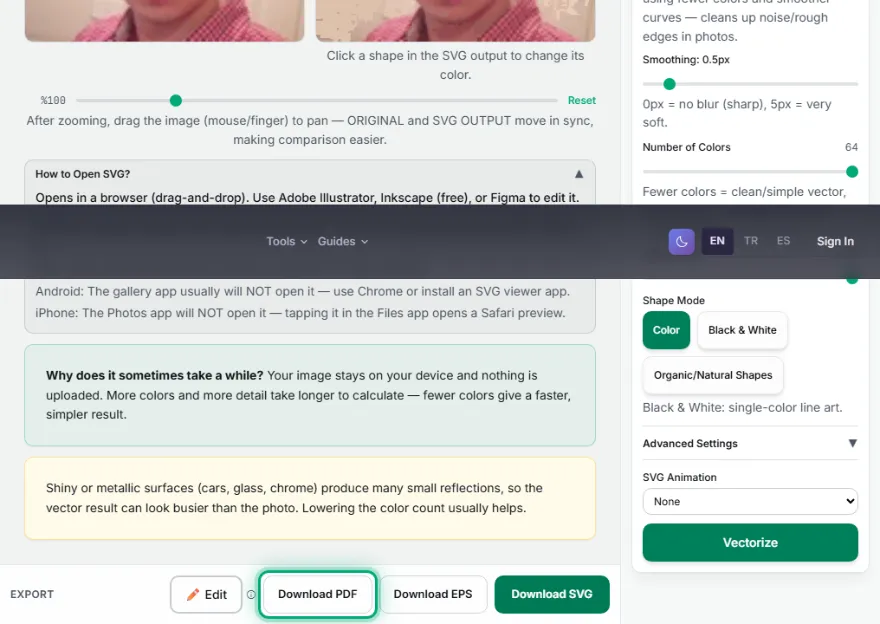
Download
Download the result as a scalable .svg file.
Features
- ✓4 ready-made presets: Realistic, Balanced, Logo/Simple Graphic, Organic/Natural Shapes
- ✓Adjustable color count (2-64) and detail level
- ✓Colored or black-and-white line art output
- ✓Output is always a scalable SVG — no quality loss when enlarged
- ✓Runs entirely in your browser (inside a Web Worker) — your image is never uploaded
Frequently Asked Questions
Are my images uploaded to a server?
No. Vectorization happens entirely in your browser, inside a Web Worker — no image is ever sent to any server.
What do color count and detail level do?
Color count (2-64) determines how many distinct color regions the output SVG will contain — fewer colors produce a cleaner/simpler vector, more colors produce a more detailed but more complex SVG. Detail level controls the precision of the path segments.
What file formats can I upload, and what's the output?
You can upload JPG, PNG, or WebP. The output is always a scalable .svg file — it doesn't lose quality when enlarged to any size, ideal for logos/icons/line art.
What are the ready-made presets?
🎨 Realistic (default, highest detail), Balanced (faster/safer), Logo/Simple Graphic, and 🌊 Organic/Natural Shapes — each optimized for a different type of image.