Ink Saving Settings
Controls are visible even before you add an image
Mode
How It Works
- 1
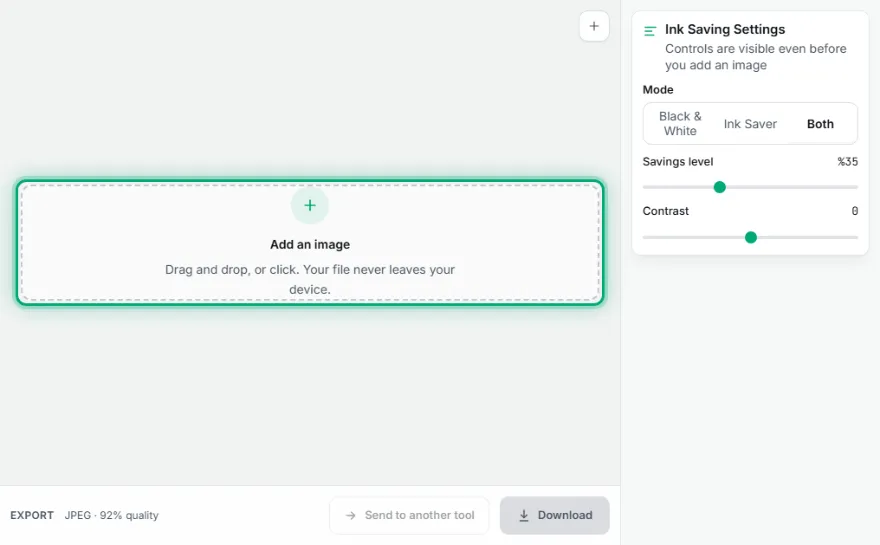
Upload your photo
Drag and drop your image, or pick it from the file browser. It never leaves your device.
- 2
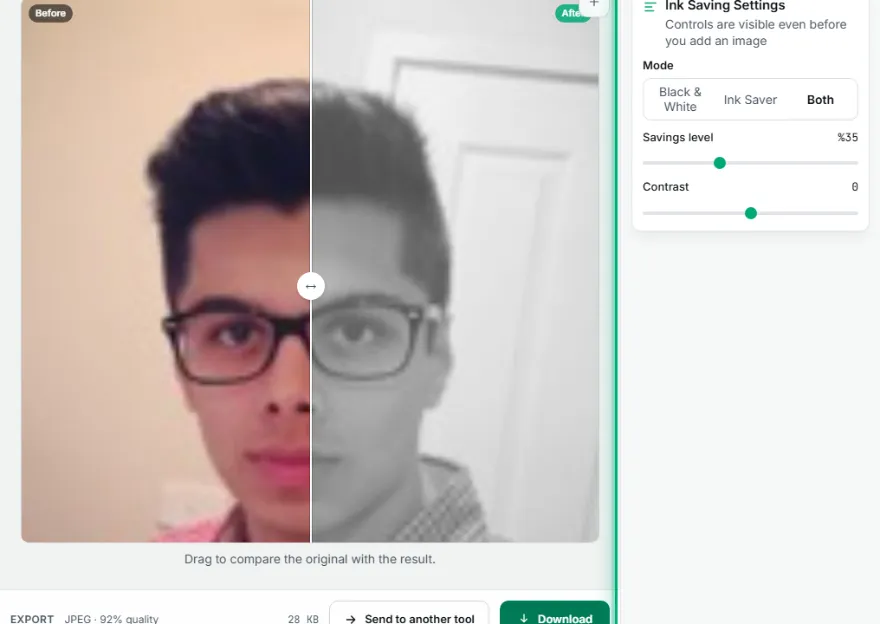
Pick a mode
Black & White, Ink Saver, or both together.
- 3
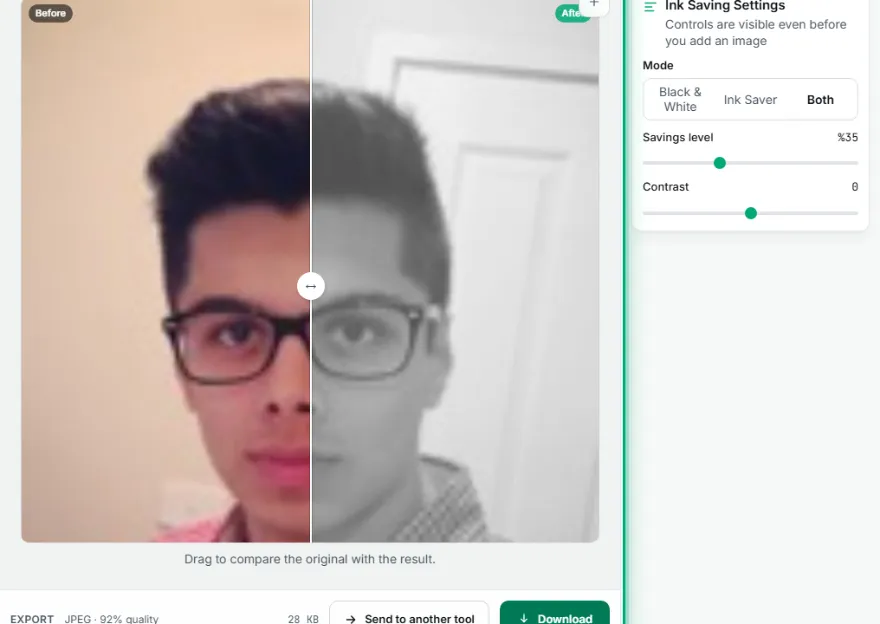
Fine-tune with the sliders
Adjust the savings level and contrast — the before/after slider updates live.
- 4
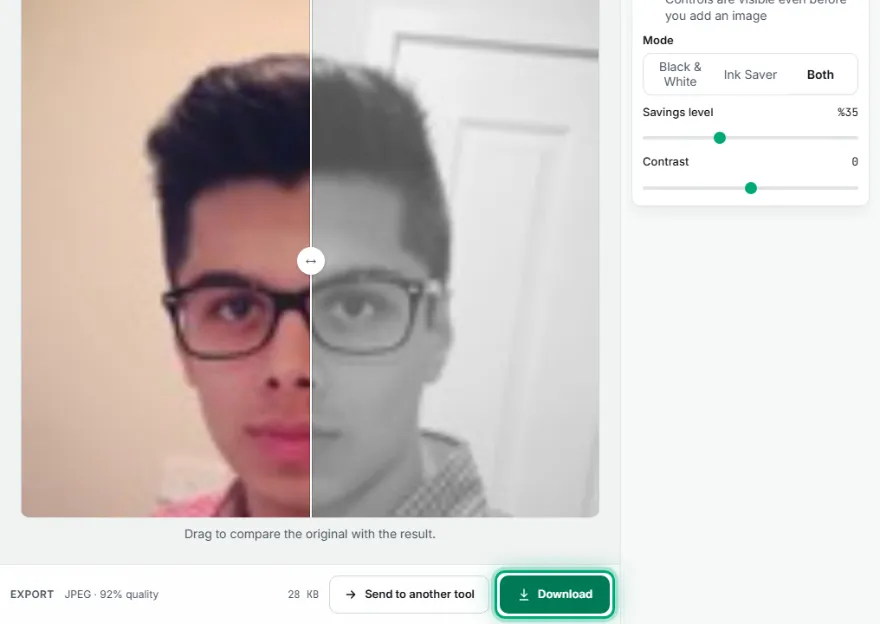
Download
Export the result as a JPEG, ready to print.
Features
- ✓Black & white, ink-saving, or combined mode
- ✓Live before/after slider to compare the original and the result
- ✓Savings-level and contrast sliders with an instant preview
- ✓Effect is weaker on near-black areas to keep text and outlines readable
- ✓Runs entirely in your browser — no image is ever uploaded to a server
Frequently Asked Questions
How does Ink Saver reduce ink use?
It proportionally lightens the dark tones in the image, so the printer draws less ink/toner from the cartridge overall. The effect is weaker in near-black areas to keep text and outlines readable.
Is my photo uploaded anywhere?
No — the whole process runs entirely in your browser. Nothing is sent to a server.
What file format can I download?
JPEG, at high quality (92%) — the standard choice for printing.
What's the difference between Black & White and Ink Saver mode?
Black & White fully removes color. Ink Saver keeps color but lightens dark tones. "Both" applies black-and-white first, then the ink-saving lightening.