Delete PDF Pages
Click the pages you want to remove — your file stays on your device.
How It Works
- 1
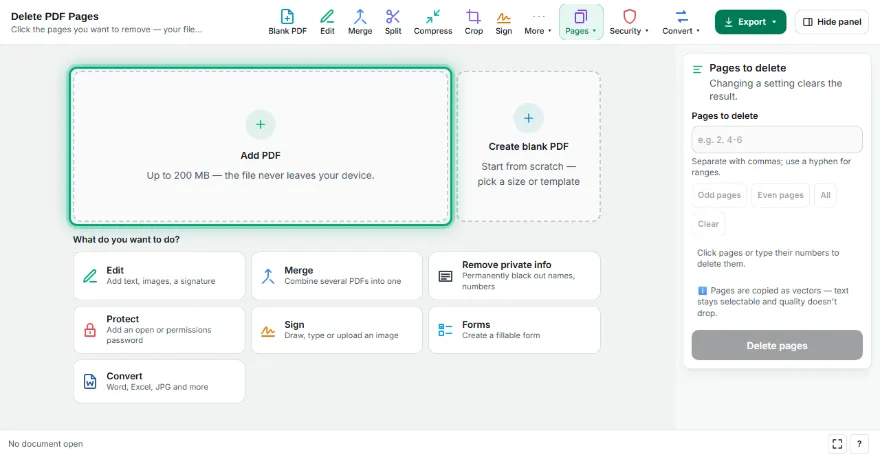
Add your PDF
Choose the PDF you want to remove pages from; pages are listed as thumbnails.
- 2
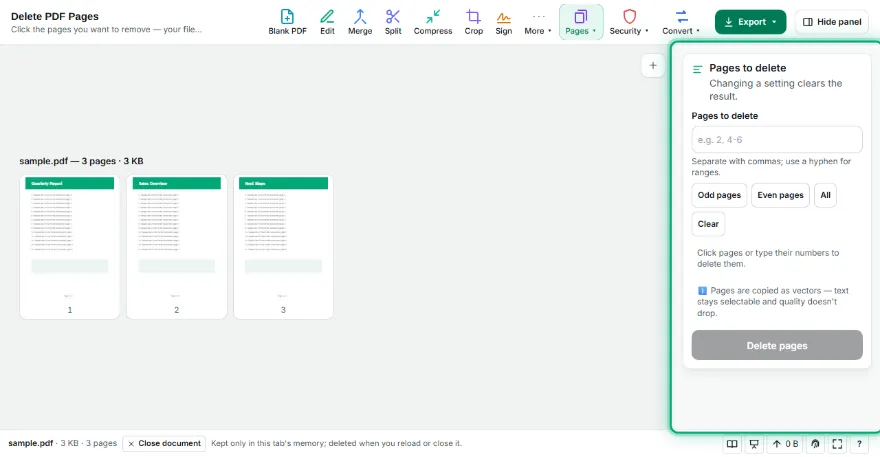
Mark the pages to delete
Click pages or type numbers such as 2, 4-6. One button selects all odd or even pages.
- 3
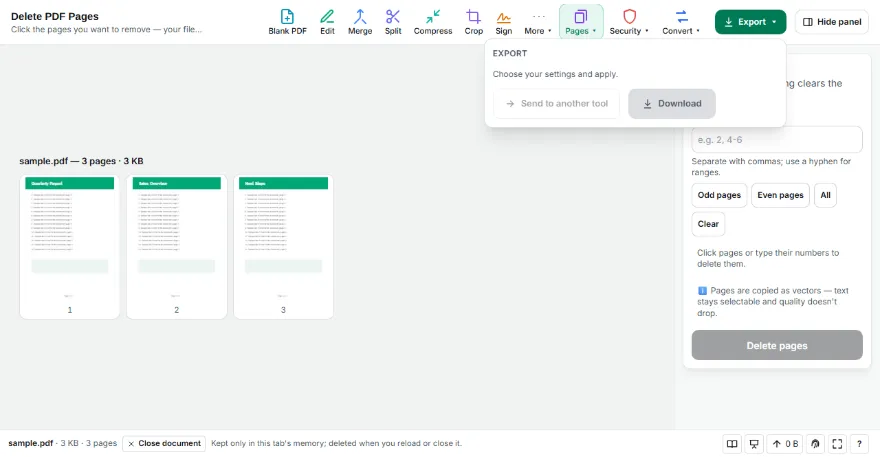
Delete and download
Press “Delete pages” and download the new PDF made of the remaining pages.
Features
- ✓Select by clicking thumbnails
- ✓Select by page numbers (2, 4-6)
- ✓Pick all odd or even pages in one click
- ✓Remaining pages copied as vectors
- ✓The file never leaves your device
Frequently Asked Questions
Can I undo the deletion?
Your original file isn't changed; the result downloads as a new PDF. You can always start again from the original.
Can I delete every page?
No, at least one page must remain. The tool warns you if every page is selected.
Does it lower the quality of the remaining pages?
No. The remaining pages are copied without being redrawn, so text stays selectable.
Can blank pages be found automatically?
Yes — use Remove Blank Pages, which marks empty pages for you.