Safe share
Prepare a PDF before you send it — nothing is uploaded
How It Works
- 1
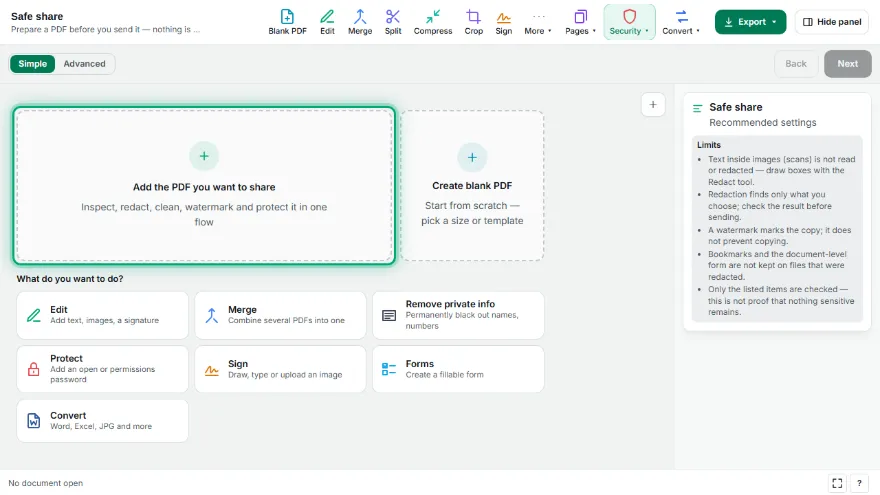
Add the PDF and review findings
The file is inspected first: metadata, comments, attachments, scripts, form values and earlier versions are listed.
- 2
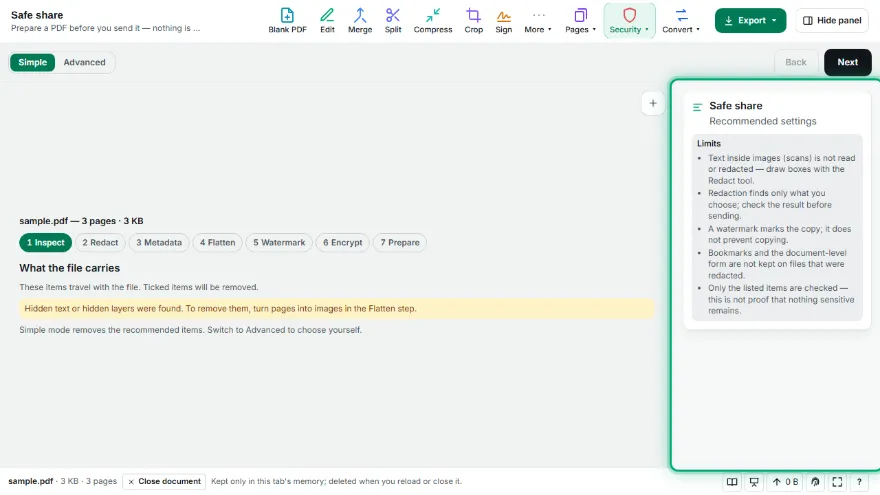
Choose what to hide
Pick ready-made finders for emails, phone numbers, IBANs, card numbers and dates, or type words to redact.
- 3
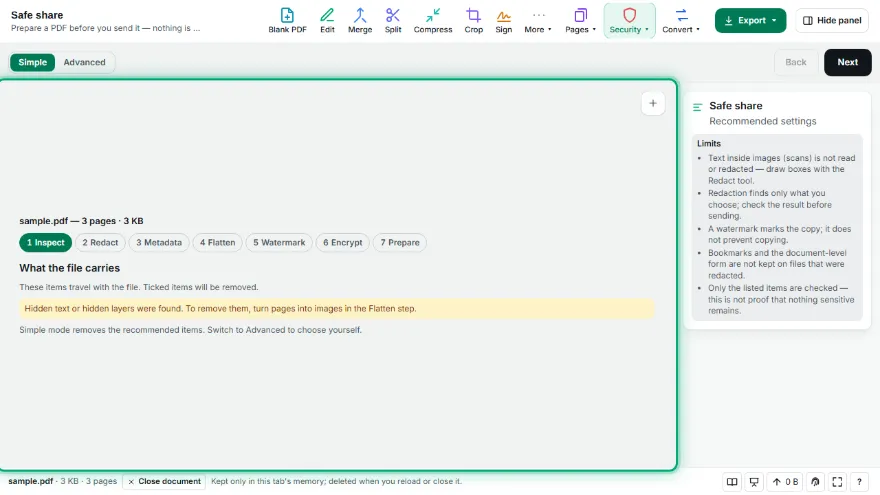
Flatten and watermark
Embed form fields into the page, and stamp CONFIDENTIAL or DRAFT with the recipient's name and today's date.
- 4
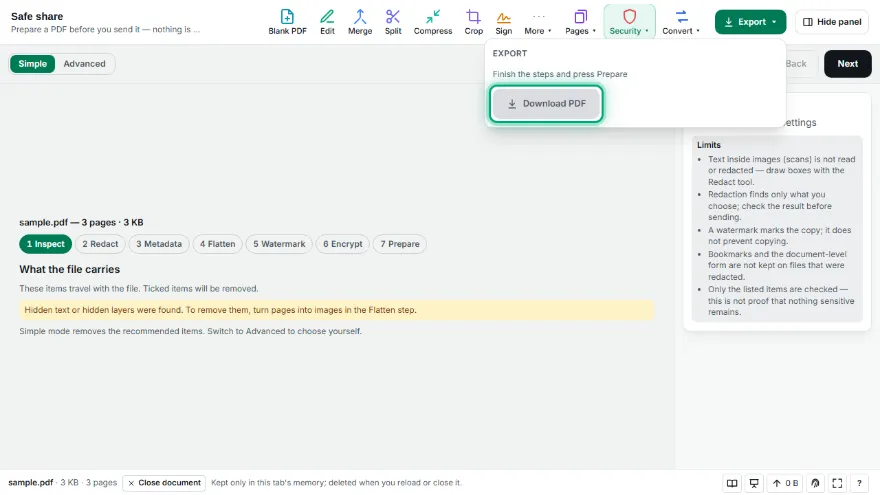
Protect and check
Add a password if you like, press Prepare, read the checks and keep the fingerprint with the file you send.
Features
- ✓One flow in the right order: inspect, redact, metadata, flatten, watermark, encrypt
- ✓Simple mode with recommended settings, Advanced mode with every option
- ✓Finders for emails, phone numbers, IBANs, card numbers and dates, plus your own words
- ✓CONFIDENTIAL / DRAFT watermark with the recipient's name and date
- ✓The cleaned file is written as a single version and inspected again before encryption
- ✓SHA-256 fingerprint of the original and the result, with a summary that contains no content
- ✓Runs entirely in your browser — the document is never uploaded
Frequently Asked Questions
What does this do that separate tools don't?
It runs the steps in the order that matters: redaction first, then flattening and the watermark, then a full clean-up that rewrites the file, a fresh inspection, and encryption last. Done in another order, a later step can bring metadata back or make the file impossible to check.
Is my document uploaded?
No. Every step runs in your browser; the file never leaves your device.
What is the difference between Simple and Advanced?
Simple applies the recommended choices and asks only what matters: what to redact, the watermark and a password. Advanced lets you pick each finding, see the values, set the watermark color and opacity, and choose printing and copying permissions.
Does the watermark stop copying?
No. A watermark marks who the copy was for and that it is confidential; it does not prevent copying. A password stops people without it from opening the file, and the copy and print permissions are respected by most viewers but not enforced by all.
Can I trust the result completely?
The result is checked again and every check is listed, but no tool can promise that a document holds nothing sensitive. Text in images (scans) is not read, and the redaction finds only what you asked for. The limits are written next to the tool.