Fillable PDF Creator
Add form fields to any PDF — nothing is uploaded
How It Works
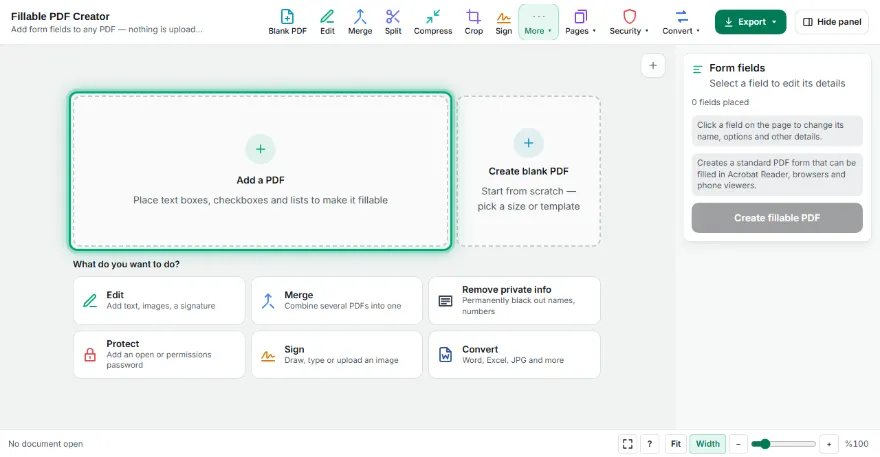
- 1
Open your PDF
Choose the document you want to turn into a form. It never leaves your browser.
- 2
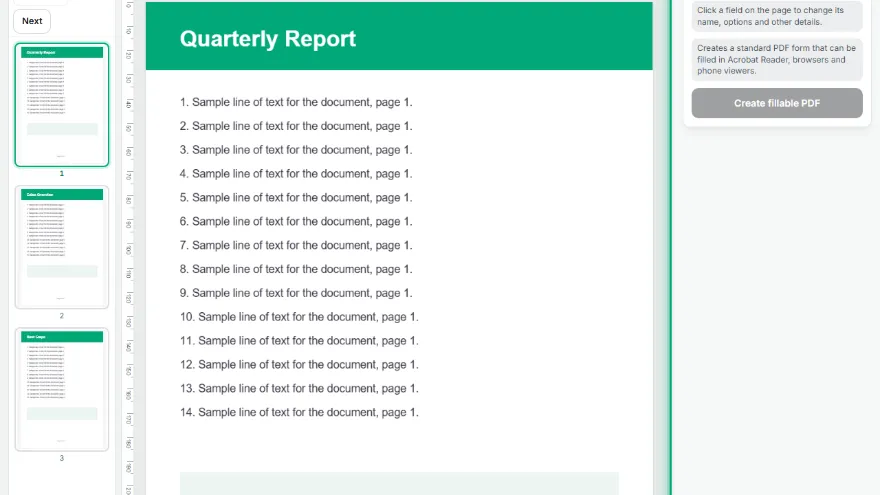
Pick a field type
Text, multi-line text, checkbox, radio button, drop-down or list box.
- 3
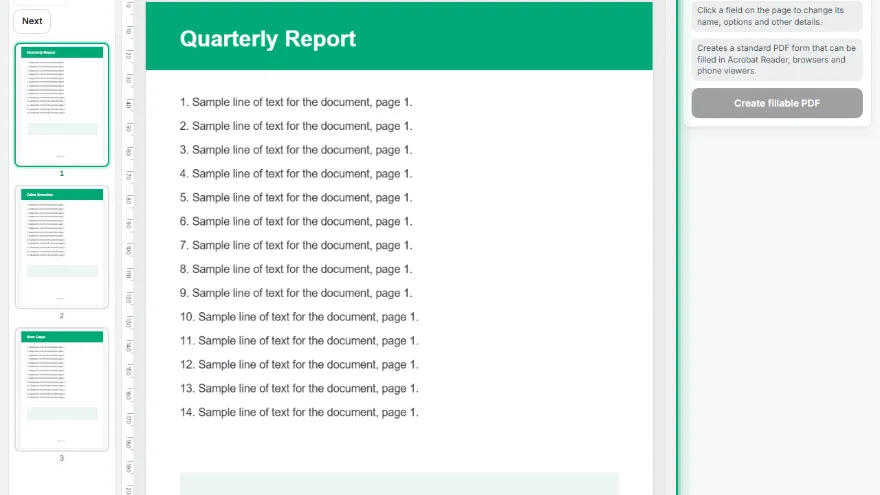
Place the fields
Click the page to drop a field, or drag to draw it at the size you want. Move it or resize it from the corner.
- 4
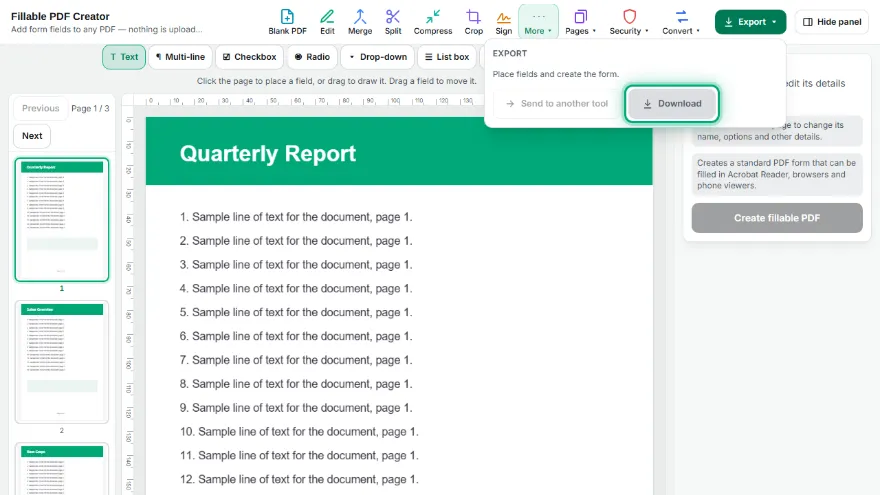
Set the details and download
Name each field, add options, defaults, required or read-only, then create the fillable PDF.
Features
- ✓Six field types: text, multi-line text, checkbox, radio buttons, drop-down list and list box
- ✓Click to place or drag to draw fields at any size
- ✓Field names, options, default values, required and read-only
- ✓Radio buttons placed one after another form one single-choice group
- ✓Font size per field; Turkish and other accented letters display correctly
- ✓Standard PDF forms — fillable in Acrobat Reader, Chrome, Firefox, Edge and phone viewers
- ✓Existing fields in the PDF are kept
- ✓Runs in your browser — the file is never uploaded
Frequently Asked Questions
Which programs can fill the form?
Any viewer that supports standard PDF forms: Adobe Acrobat Reader, the PDF viewers built into Chrome, Edge and Firefox, macOS Preview and most phone PDF apps. The tool does not use XFA, which only works in Acrobat.
How do I make a group of radio buttons?
Place the buttons one after another — they join the same group automatically, so only one of them can be chosen. To start a new group, give a button a different group name.
Can people type Turkish or accented characters into the fields?
Yes. The whole font is embedded in the form, so letters like ş, ğ, ı, İ, é or ñ display correctly when someone types them later.
What happens to form fields that are already in my PDF?
They stay as they are. New fields get unique names so they do not clash with existing ones.
Can I fill in the form here too?
Yes — open the result in the PDF Editor and use its form filling, or simply open it in your browser's PDF viewer.
Is my document uploaded?
No. Everything happens in your browser and the file never leaves your device.