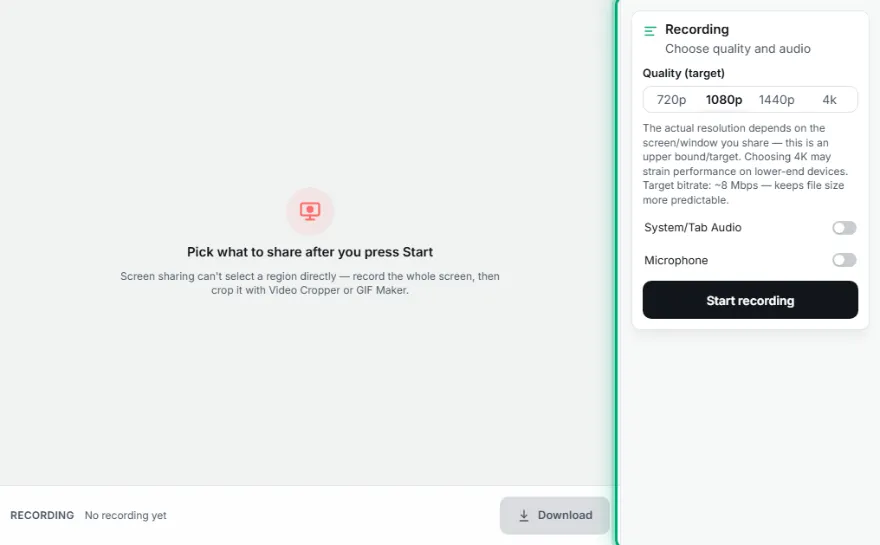
Pick what to share after you press Start
Screen sharing can't select a region directly — record the whole screen, then crop it with Video Cropper or GIF Maker.
Recording
Choose quality and audio
Quality (target)
The actual resolution depends on the screen/window you share — this is an upper bound/target. Choosing 4K may strain performance on lower-end devices. Target bitrate: ~8 Mbps — keeps file size more predictable.
How It Works
- 1
Choose quality and audio
Pick a target quality, and check system audio/microphone if you want.
- 2
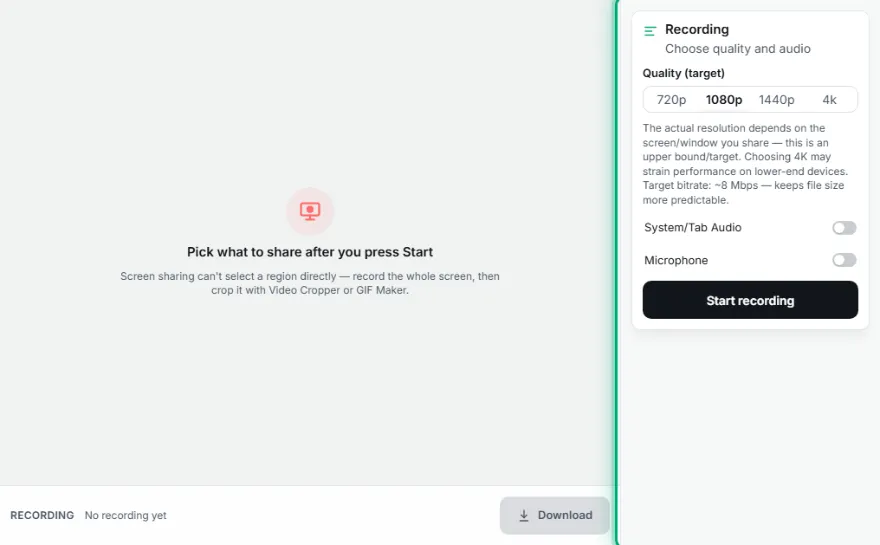
Start recording
Press "Start Recording" and choose the screen/window/tab you want to share.
- 3
Stop
Press "Stop" when you're done — you can pause and resume at any time.
- 4
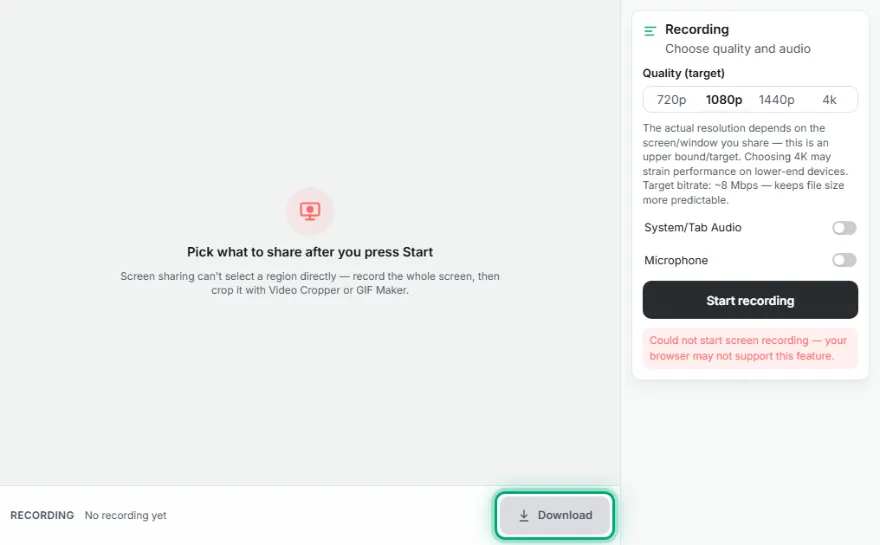
Download or send
Download as MP4/WebM, or send it to GIF Maker in one click.
Features
- ✓Record by choosing a screen, window, or tab
- ✓Target quality selection from 720p up to 4K
- ✓System/tab audio and microphone — both optional, off by default
- ✓Start/Stop/Pause/Resume with a live duration display
- ✓Send to GIF Maker's "Create from Video" flow in one click
- ✓Runs entirely in your browser — no recording is ever uploaded to a server
Frequently Asked Questions
Is my recording uploaded to a server?
No, recording happens and is stored entirely in your browser — no video/audio data is ever sent to a server.
What format can I download it as?
You can download as MP4 if your browser supports it, or WebM if it doesn't (e.g. Firefox) — the one used is shown on screen once recording finishes.
How do I record system audio?
Check the "System/Tab Audio" box and also enable the browser's own "Share audio" option in the sharing dialog — this feature can vary by browser/operating system.
How do I turn the recording into a GIF?
When recording finishes, press "Send to GIF Maker" — your recording is automatically loaded into GIF Maker's "Create from Video" tool, no need to pick the file again.