Flatten
Make forms and comments part of the page — nothing is uploaded
How It Works
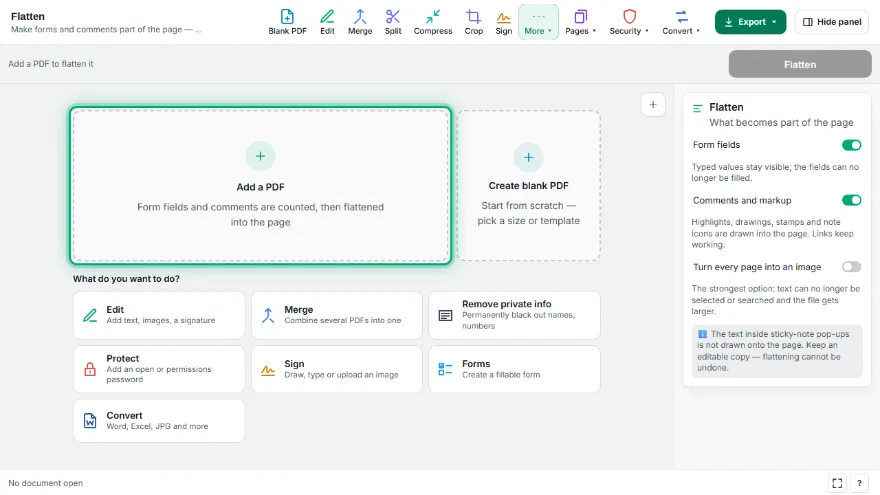
- 1
Add your PDF
The number of form fields and comments in the file is shown.
- 2
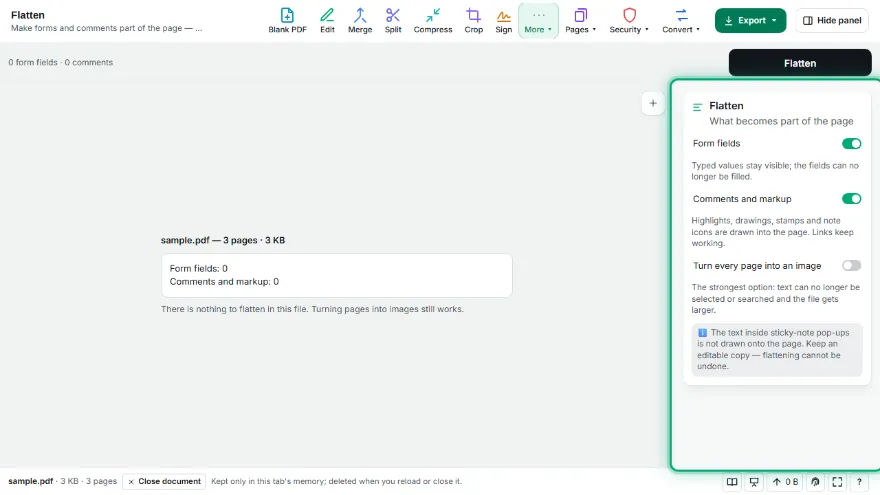
Choose what to flatten
Form fields, comments and markup, or — the strongest option — every page as an image.
- 3

Flatten
Each field and comment is drawn into the page exactly as it looks, then removed as an editable object.
- 4
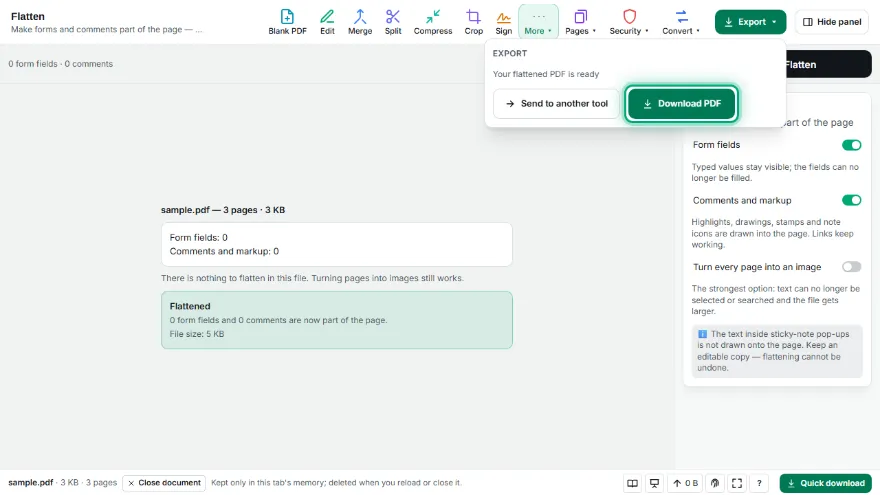
Download
The flattened PDF looks the same in every viewer and can no longer be edited.
Features
- ✓Flattens filled form fields — the typed values stay, the fields disappear
- ✓Flattens comments, highlights, drawings and stamps into the page
- ✓Each item is drawn exactly as it appears, in the same place
- ✓Links keep working; hidden comments are removed
- ✓Optional: turn every page into an image, the strongest form of flattening
- ✓Reports what was flattened and anything that could not be
- ✓Runs entirely in your browser — your PDF is never uploaded
Frequently Asked Questions
What does flattening a PDF do?
It makes form fields and comments part of the page content. The document looks the same, but nothing can be typed into or edited anymore, and every viewer shows it the same way.
Will the filled-in values stay?
Yes. The values you see in the fields are drawn into the page; only the editable field is removed.
What happens to sticky-note text?
The note icon stays on the page, but the text inside its pop-up window is not drawn onto the page. Copy it into the page first if you need it.
Is my PDF uploaded?
No. Flattening happens in your browser; the file never leaves your device.
When should I turn pages into images?
When nothing in the file may stay selectable or hidden — for example before sharing a signed form. Text can no longer be selected or searched afterwards, and the file usually gets larger.