Grayscale PDF
Turn a colour PDF gray — your file stays on your device.
How It Works
- 1
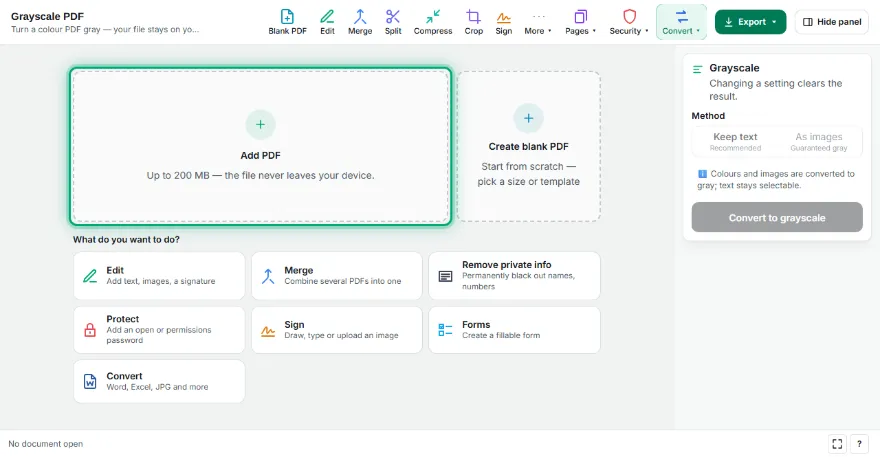
Add your PDF
Choose the colour PDF you want to convert. A before/after preview of the first page appears.
- 2
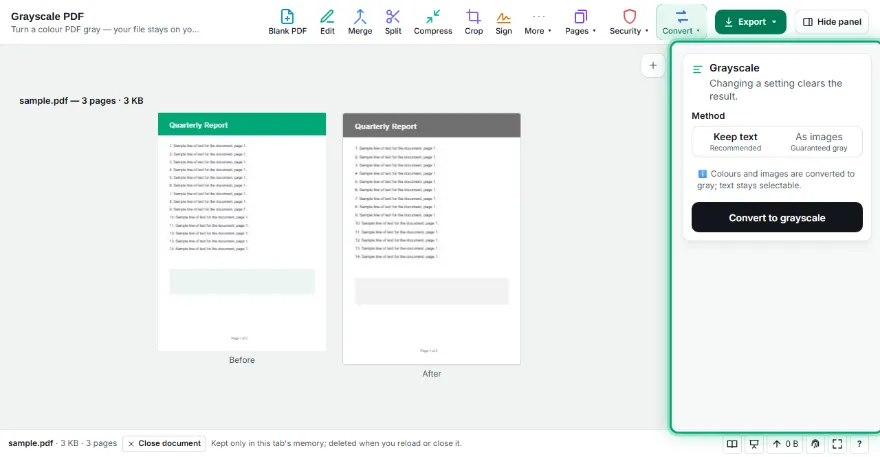
Choose a method
“Keep text” converts colours and images to gray and keeps text selectable. “As images” turns every page into a gray image — fully gray, but text can't be selected.
- 3
Convert and download

Press “Convert to grayscale” and download the new PDF.
Features
- ✓Text and vectors stay vector
- ✓Images are converted too
- ✓Anything that can't be converted is reported
- ✓Image mode for a guaranteed result (150–300 dpi)
- ✓Before/after preview; the file never leaves your device
Frequently Asked Questions
Does text stay selectable?
In “Keep text” mode, yes: only colours change. In “As images” mode pages become images and text can't be selected.
Why might some parts stay coloured?
Gradient fills and some special image types can't be converted in this mode. The tool counts and reports them; use “As images” for a guaranteed result.
Does it save ink?
A grayscale document doesn't need colour cartridges; how much you save also depends on your printer's gray setting.
Does the file size change?
In Keep text mode it usually stays similar. In image mode it can grow depending on the resolution.