Settings
Select the area
How It Works
- 1
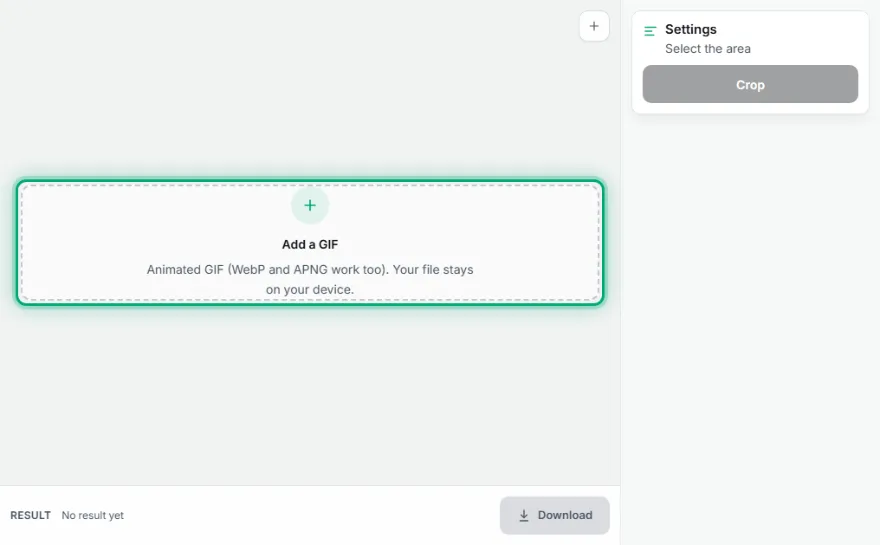
Add the GIF
Choose the GIF to crop; the animation keeps playing.
- 2
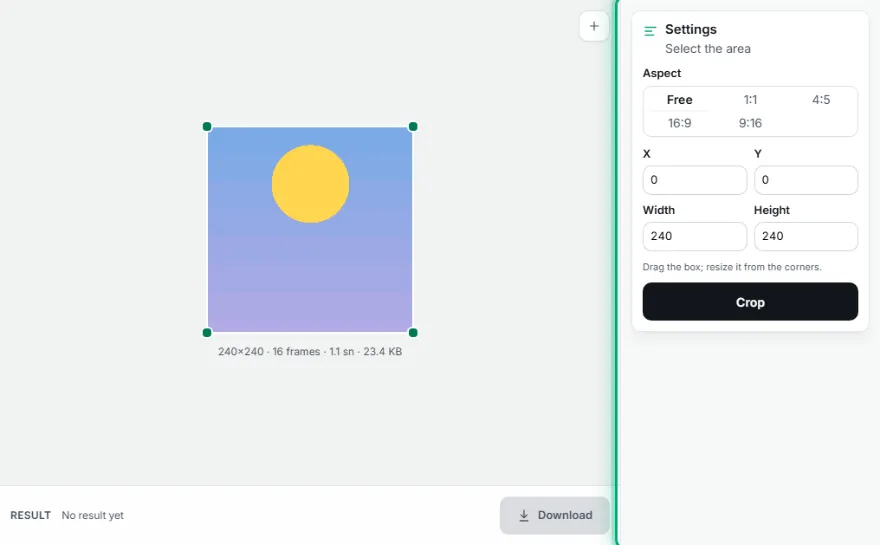
Select the area
Drag the box and resize it from the corners, or pick 1:1, 4:5, 16:9 or 9:16; type pixel values if you like.
- 3

Crop and download
Preview the result and download it.
Features
- ✓Draggable crop box with corner handles
- ✓1:1, 4:5, 16:9, 9:16 and free aspect
- ✓Pixel precision with X, Y, width and height
- ✓Same area applied to every frame
- ✓Frame timing kept
- ✓Your file stays on your device, nothing is uploaded
Frequently Asked Questions
Is every frame cropped in the same place?
Yes, the area you choose is applied to every frame of the animation.
How do I make a square GIF for Instagram?
Choose 1:1, drag the box over the important part and crop.
Why can the cropped GIF be larger?
The cropped GIF is re-encoded, and the original may have been tightly optimised by a specialised tool. If needed, shrink it with Compress GIF.
Does it work with transparent GIFs?
Yes, transparency is kept.